Encryption best practices in Sunet Drive
Introduction
This is a guide for users of Sunet Drive that know that they have a requirement to encrypt files, but don’t know how to do that. There are multiple ways of achieving the same thing, as what is outlined in this guide. The recommendations made in this guide are meant to be secure and safe, while at the same time being easy to explain to any group of users. The tools that are mentioned in this guide are all free and open source software, cross platform, and readily available to all users. If you have another preferred tool, you can by all means use that tool. This guide is simply a way to get started, for those who do not already know how to get started with encryption.
It is important to note, that Sunet Drive uses industry standard encryption techniques to encrypt your data in transit, and at rest. But depending on your needs, you might have even stronger requirements, e.g. to make sure that even trusted Sunet engineers with the highest levels of access to servers and storage can never access your data.
Encryption best practices in Sunet Drive
Encryption of files is often a requirement, for the most sensitive data. Encryption of files is a valuable tool for protecting data beyond the security offered by Sunet Drive by default. We cannot tell you if you need to encrypt your files or not, this is a question that only you, your team and the Data Access Unit (DAU) can answer. However, if you need to encrypt your data, we can tell you how to do it. When a file, or a set of files, are encrypted it should be impossible, or at least very, very hard, to decrypt without the encryption key (password). For this purpose it is vital that you do not loose your encryption key, and also that you keep it safe from others. Included in this guide is also a suggestion for a password manager that you can use to keep your encryption keys safe, and that you can also use for generating cryptographically secure encryption keys.
Encrypted data transfers
Nextcloud employs industry-standard TLS to encrypt data in transfer. The same is true for the connections to the S3 storage back-ends. Any data uploaded to Sunet Drive, should be considered as protected as possible, while being transferred on the network.
Encrypted data at rest
Encryption at rest means that data is encrypted while stored on disk. That means that someone with access to the back-end storage of Sunet Drive, cannot read the clear text data stored there. All physical servers running Sunet Drive employ industry-standard aes-xts-plain64 cipher to encrypt disks using hardware tokens, meaning that data stored on e.g. stolen physical drives can not be accessed. The Nextcloud servers of Sunet Drive are virtual machines, and the data is decrypted and can be accessed by these servers while physical servers are powered on. There are additional possibilities of encrypting data in the virtual machine layer, which is not employed in Sunet Drive.
One option for encryption at the virtual layer in Nextcloud is their native, Server Side Encryption. However, inherent to the concept of server side encryption, encryption keys will be present in memory of the Nextcloud server during the time a user is logged in and could be retrieved by a determined attacker. We have therefore decided not to enable this feature, since we believe that it will only give a false sense of security. After all, if you require your files to be encrypted, you probably want them to be safe from a really determined attacker as well. Encryption keys are best stored separated from the encrypted data that they protect, which is not the case with server side encryption in Nextcloud. What’s more, we want Sunet Drive to be independent from any vendor. That means that we do not want to rely on the end to end encryption offered in newer versions of the sync client.
Storing passwords in a password manager
Passwords are used to keep data safe. To do that job, they need to be strong. Strong passwords are hard to remember. You should also make sure to use different passwords for all applications, because if you do, and one of your passwords is compromised, all the other data protected by your other passwords are still safe. That means that you need to have many passwords, that are hard to remember. To solve this problem there are password managers available, which alleviates these issues by keeping track of your many passwords, and also helps you generate strong, and complicated passwords. These passwords are then protected by a single password that you use to access your password manager. That way you only need to remember one password, but you can still have strong, complicated and unique passwords protecting all your data. In the do’s and don’ts-section we give suggestions on how to create one memorable password, which is still strong enough to protect your other passwords.
End to end encryption using 7zip
As we do not want to simply detail the difficulties with encryption, but also want to offer solutions, we will present some options in this section.
- We suggest that you use the software 7zip to encrypt your data, prior to uploading it to Nextcloud. 7Zip is a free and open source software that can create encrypted archives, using the state of the art AES-256 encryption algorithm: \ https://www.7-zip.org/download.html
- We suggest that you store your encryption keys in a password manager, you first choice would be the solution proposed by your institution, however, if there is no such solution available, we propose that you use KeePassXC for storing your encryption keys (see below for justification). \ https://keepassxc.org/download/
Installing 7zip
Windows
For installation of 7zip on Windows simply go to https://www.7-zip.org/download.html and download the .msi installer (most likely, the 64-bit Windows x64 version).
Mac OS
For installing 7zip on Mac OS, we recommend using Homebrew. So the first thing you need to do, is install Homebrew. If you want a graphical program for accessing Homebrew, you can use Cakebrew: https://www.cakebrew.com/. You can also follow the instructions for the command line version of Homebrew: https://brew.sh/ if you prefer. When you have Homebrew, available you can use that to install the p7zip package: https://formulae.brew.sh/formula/p7zip.
GNU/Linux
Please use your package manager to install software in GNU/Linux. In Debian/Ubuntu based distros the package is called: p7zip-full while in Fedora/RHEL based distros you can install p7zip-gui. For Arch the package 7-zip is available. For newer versions of OpenSuse you can install the 7zip packages, while older versions use the name p7zip-full.
Installing KeePassXC
Windows
You can get the program from the Microsoft Store:
or go to:
and download and install the .msi package offered for Windows
Mac OS
KeePassXC is also available from Homebrew: https://formulae.brew.sh/cask/keepassxc
GNU/Linux
Both in Debian/Ubuntu based distros, and in Fedora/RHEL based distros, as well as in OpenSuse and Arch, the package is called keepassxc.
Using KeePassXC to generate and store passwords/encryption keys
The full documentation for KeePassXC is available at:
Here is a quick start guide to get you started:
- Open KeePassXC
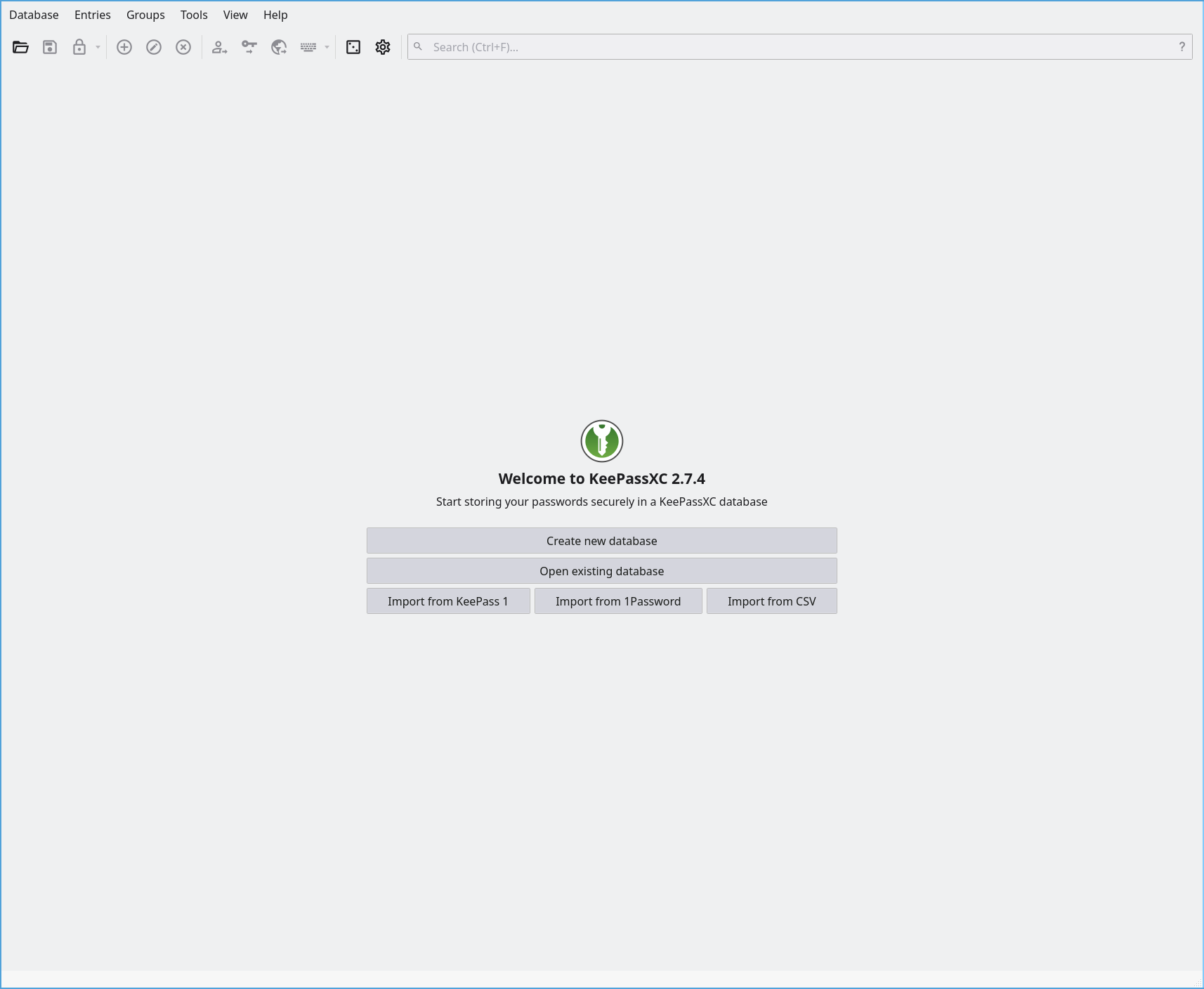
- Click create new database and choose a name for your database
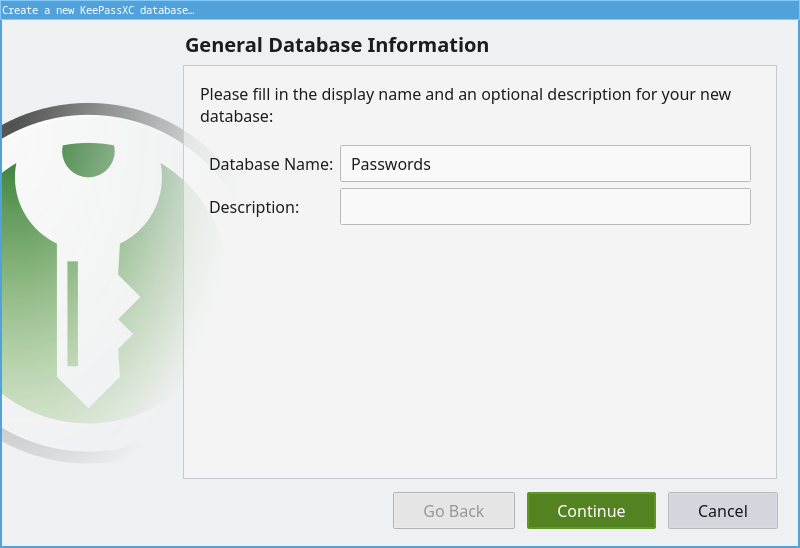
- The next section asks you to select decryption time. This setting changes how the database used to store your password is encrypted. You do not need to change this setting, the default should be fine. There is a trade-off between how long it takes to open the database, and how strong the encryption used is. But don’t worry, the default is plenty safe. The default database format is the latest and greatest, and should be used.
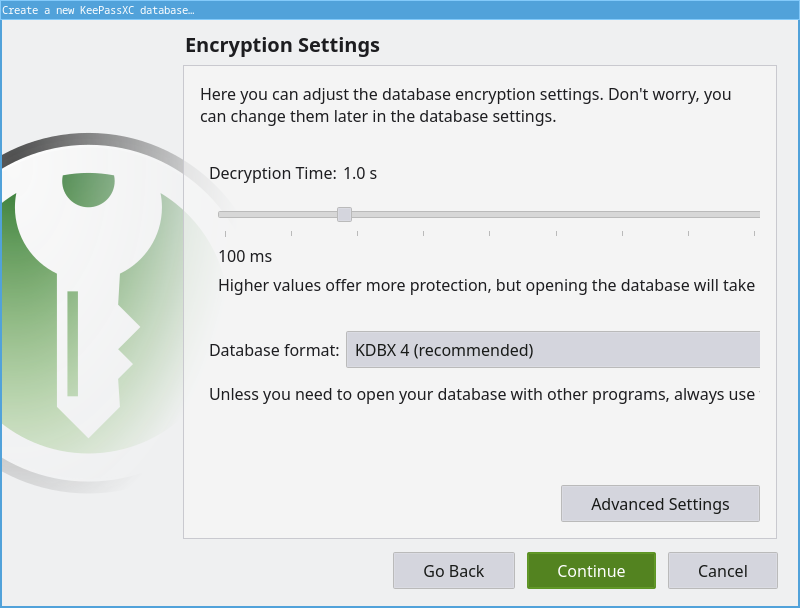
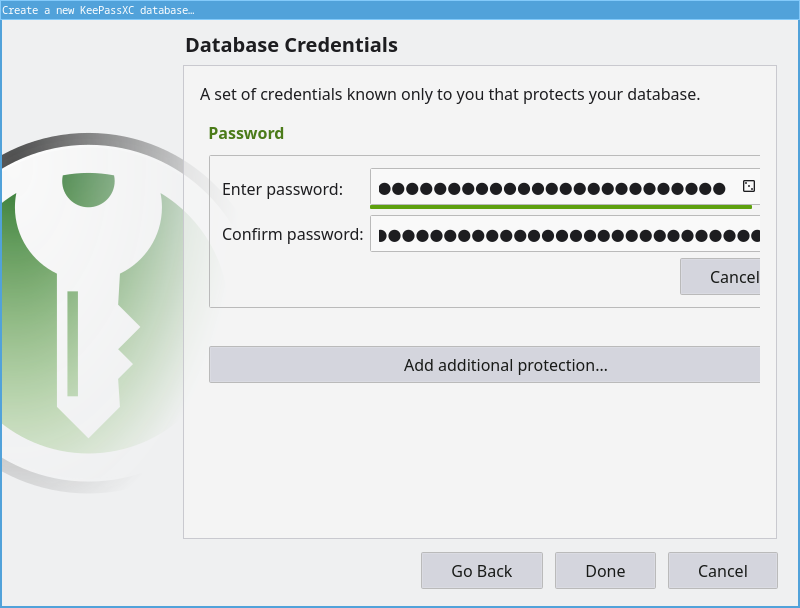
- Now enter the passphrase for the database, which should be strong, perhaps generated with the Diceware method mentioned below, in the Do’s and don’ts-section.
- Select where to store the database, we recommend storing it in Sunet Drive, see below under Do’s and don't for justification.
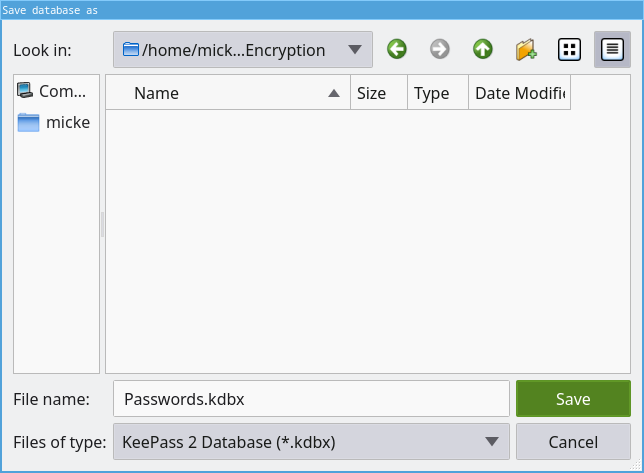 \
Now you have set up KeePassXC to store your encryption keys for you. Well done! It is now easy to generate strong and complicated encryption keys for use with 7zip (see below).
\
Now you have set up KeePassXC to store your encryption keys for you. Well done! It is now easy to generate strong and complicated encryption keys for use with 7zip (see below).
Generating strong encryption keys
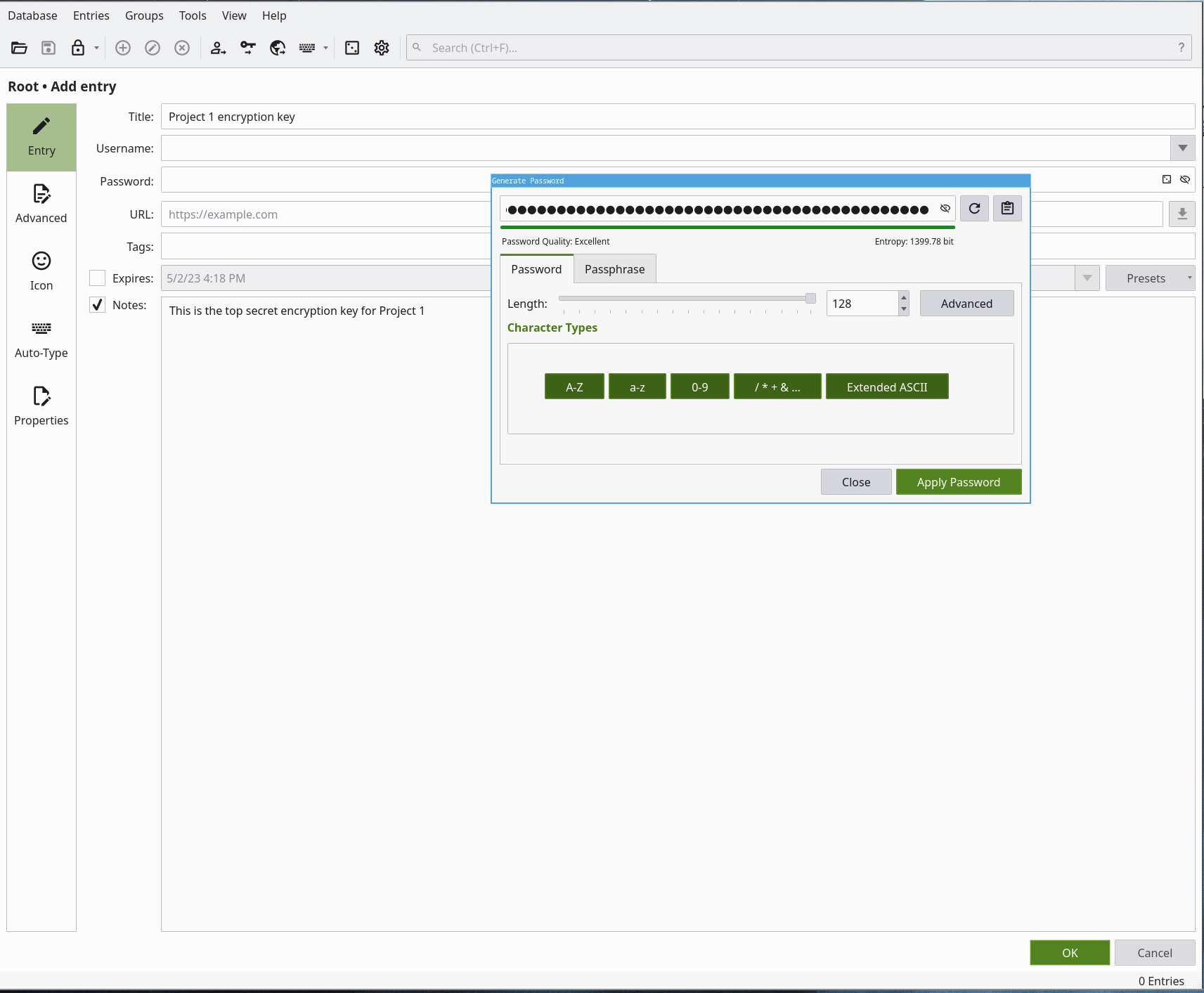
To generate a strong encryption key, you simply click the plus sign (add new entry) and click on the little dice icon on the right side of the password field.
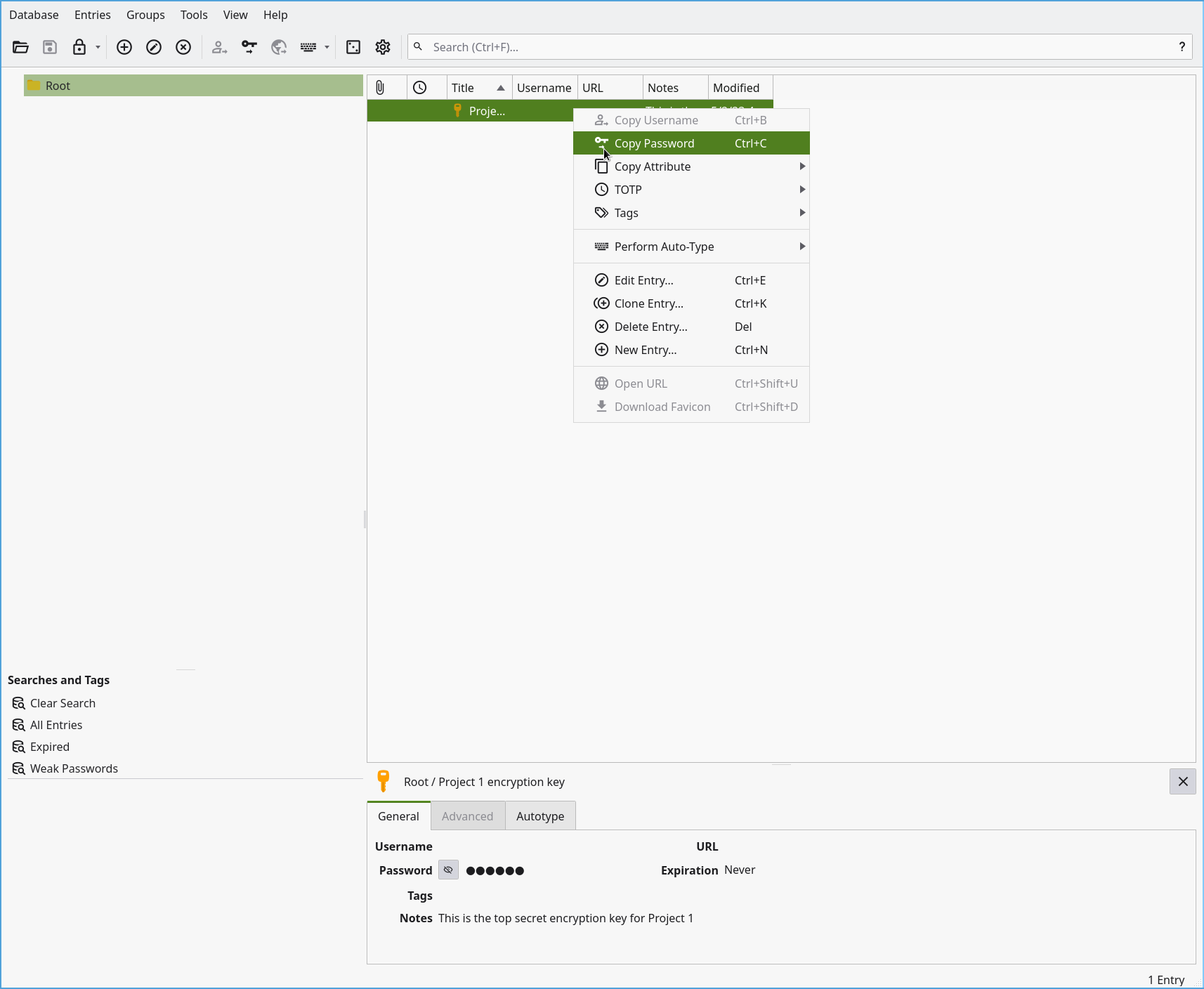
To retrieve the password after it is created, you can copy it to the clipboard by right clicking on it, like this:
Using 7zip to encrypt files
In Windows
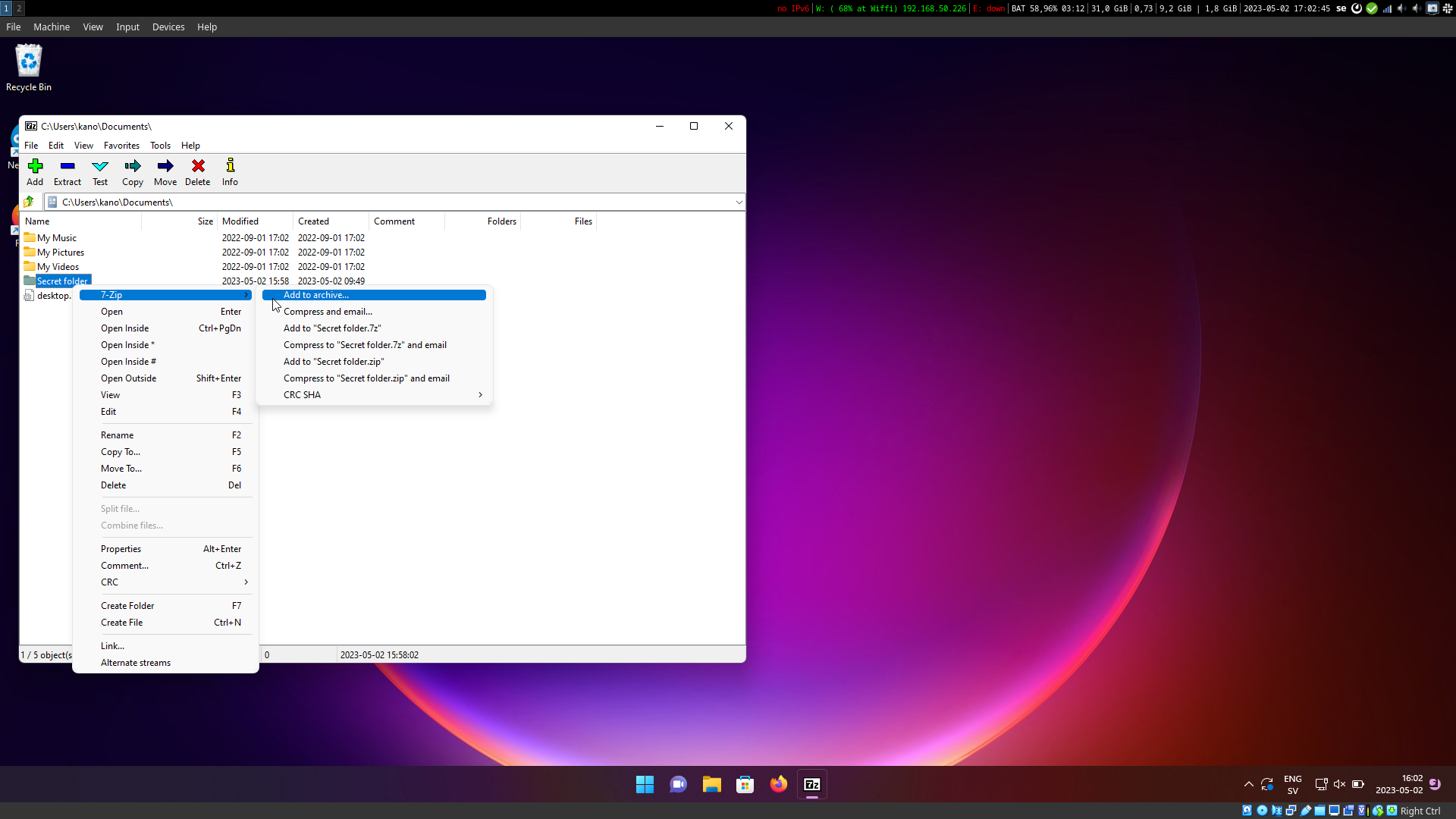
The 7zip program comes with a built in file browser that you use to add files to an archive, by right clicking on the file/folder you wish to encrypt.
 \
\
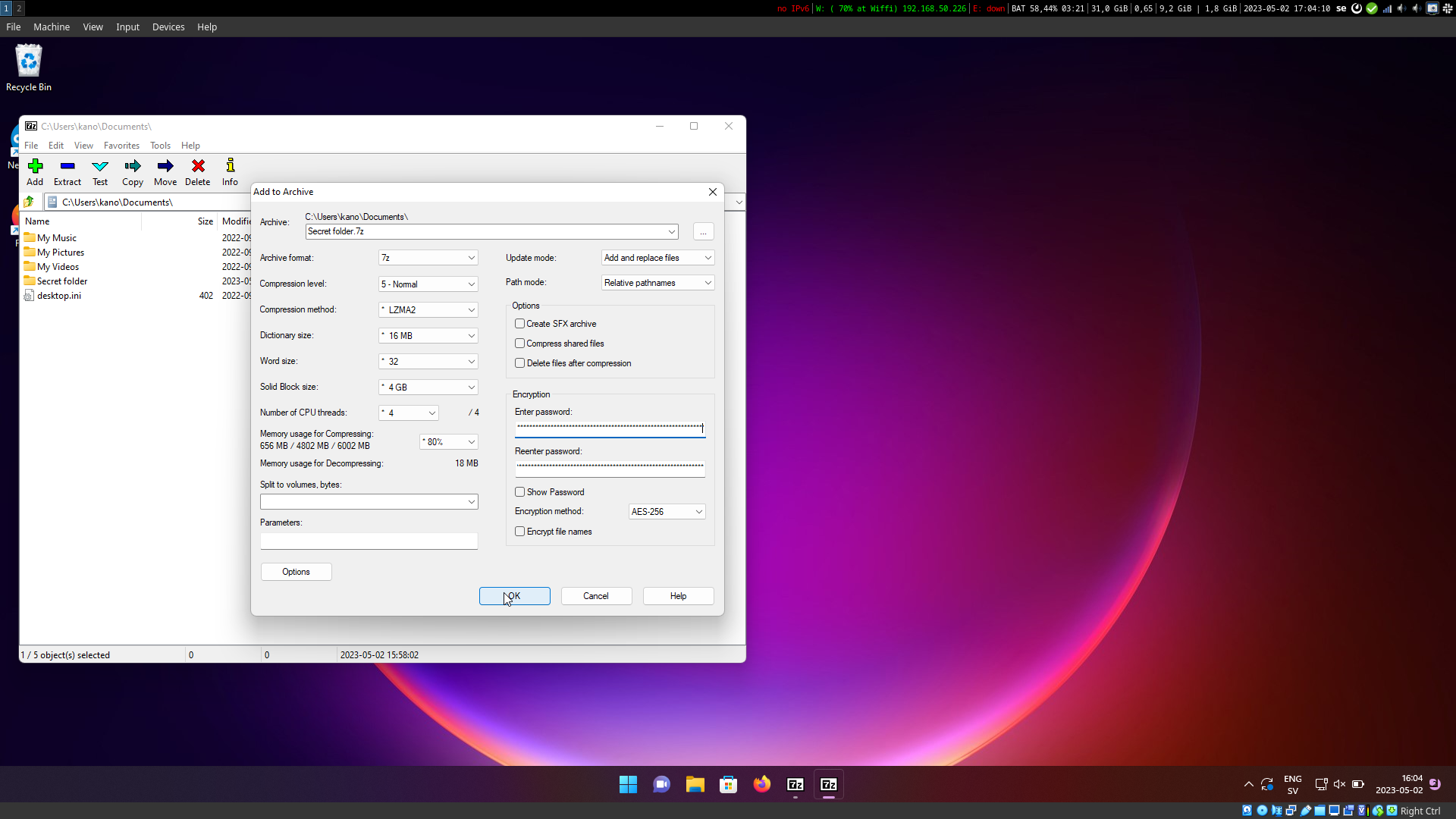
In the next dialog, you can set your password/encryption key, and decide on a file name for your encrypted archive. There are many options that you can set in this dialog, but they are related to compression of the 7zip-archive that is created, and does not impact the encryption of your files, so you can safely rely on the defaults as they are well balanced already. The only setting that is important is the “Encryption method”, which should say AES-256 by default.
\
\
In the next dialog, you can set your password/encryption key, and decide on a file name for your encrypted archive. There are many options that you can set in this dialog, but they are related to compression of the 7zip-archive that is created, and does not impact the encryption of your files, so you can safely rely on the defaults as they are well balanced already. The only setting that is important is the “Encryption method”, which should say AES-256 by default.
In Mac OS and GNU/Linux
The process will be very similar in Mac OS and GNU/Linux as compared to Windows, but 7zip does not come with a custom file browser for these platforms. Instead 7zip integrates with the normal file browser on Mac OS (right click on a folder or file and select 7-zip) and on GNU/Linux you can for example use the Gnome archive manager (file-roller) which comes with built in support for 7zip, or set up custom actions for your file manager using the p7zipForFilemanager command that comes with the p7zip installation.
Using 7zip to decrypt files
In Windows
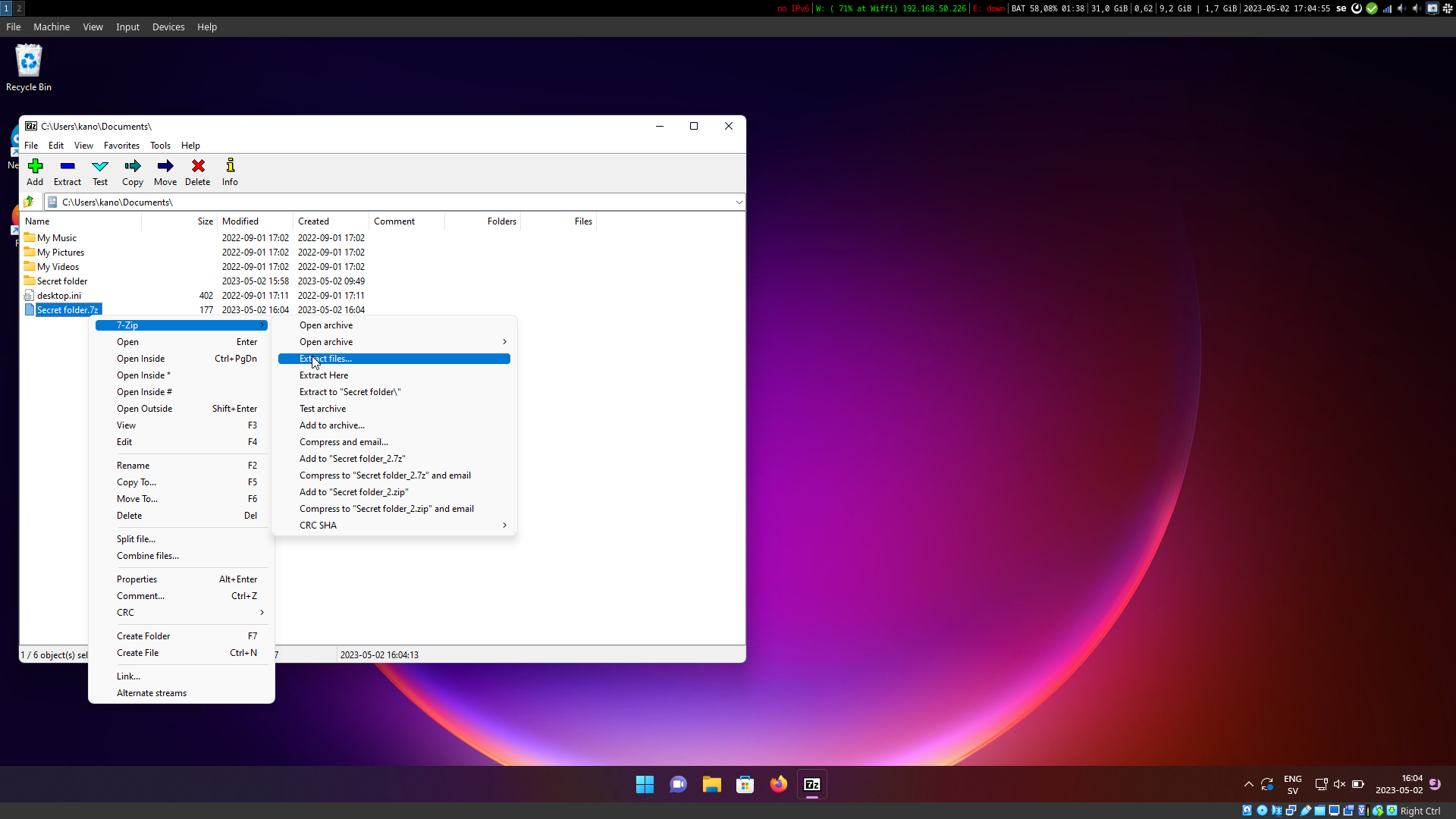
In Windows you will again use the built in 7zip file browser, simply right click on your encrypted archive and select 7-Zip and Extract files.

In Mac OS and GNU/Linux
Once again, the process is very similar in Mac OS and GNU/Linux as compared to Windows, but instead of using the bespoke file browser for Windows, you will use the file manager or archive manager that was used in the previous step.
Do’s and don'ts
Do store the KeePassXC database in Nextcloud
We actually recommend storing the KeePassXC database in Nextcloud, in your Sunet Drive account. While this might seem counter intuitive, since we made a big deal out of storing encryption keys and encrypted data separate, it should not be an issue in this case, since the database is itself encrypted using a combination of the AES-256 encryption algorithm (the same one used by 7zip) and another algorithm called HMAC-SHA256, which according to an independent security review is considered secure: https://keepassxc.org/assets/pdf/KeePassXC-Review-V1-Molotnikov.pdf
Do use a strong passphrase for the KeePassXC database
Since the KeePassXC database is encrypted, you need to set a passphrase for it, which needs to be strong. Why would you use a password manager, that you still need to remember a passphrase for, you might ask. Using a password manager to store your passwords, allow you to have very complicated and unique passwords, which you do not need to remember. Instead you can create one strong, but memorable, passphrase and use that to access all your other passwords. One way to achieve this is use Diceware: https://diceware.dmuth.org/. The Diceware method is to create a long, but memorable passphrase, using words instead of a meaningless combination of characters, numbers and special characters.
Don’t store clear text data in Nextcloud (if it needs to be encrypted)
This might seem obvious, but when encryption tools are easy to work with, for example, when you can decrypt a file by right clicking on it and give a password, you might by mistake decrypt your files within a directory which is synced by the Nextcloud client to Sunet Drive, thus exposing your decrypted files to Nextcloud. Instead make sure to move your encrypted files outside of the Nextcloud directory before decrypting them. Should you make a mistake with this, make sure to delete your decrypted files from Nextcloud, and log in to the web interface, go to “deleted files” and permanently delete the decrypted files there as well. If you discovered this after more than one night, your unencrypted files will more than likely reside in the Sunet Drive backup. In that case, contact drive@sunet.se and we will try to assist by deleting the files from the backup.