Mobile client basics - iOS and Android
The most convenient way of logging into Sunet Drive from your mobile device is by scanning the QR code when creating an app token. Using the mobile app, you can add as many Nextcloud accounts as you like, and seamlessly switch between the accounts.
Mobile app login
- Open Sunet Drive in our web browser on your desktop PC or in the browser of another mobile device
- Click on your profile icon and then Settings
- Open Security on the left panel
- Scroll down, add an “App name” (e.g., mobile client) and select “Create new app password”
- Click on “Show QR code for mobile apps”
- Open the mobile app on your device, select the QR code symbol and point the camera at the generated QR code
Adding multiple accounts
- Open the mobile app and click on your user account on the top left
- Select “Add account” and follow the steps described in “Mobile app login”
Removing user accounts
- Open the mobile app
- Click on “More” at the bottom right
- Select your username to enter the “Credentials” menu
- Click on the red minus and then “Delete” to remove the account from the mobile app
Generated QR code that can be scanned with the mobile app to log on
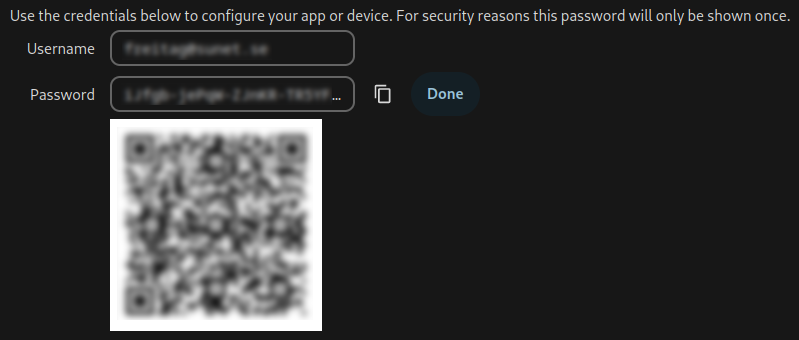
The username, password, and QR code in this picture obviously have been blurred, they will be clear and readable when you create them for yourself.
The start screen of the Nextcloud iOS app. Select the QR symbol to scan the code

The QR code scanner of the iOS app

Selecting different user accounts

All user accounts with option to remove
