WebDAV on Windows
With WebDAV you can directly connect to Sunet Drive through the Windows Explorer or other WebDAV compatible programs. The following instruction applies to Windows 11, but is similar to other versions of Windows. The generic instruction on how to map a network drive can be found at support.microsoft.com.
- Log on to Sunet Drive using your default browser
- Open the files app
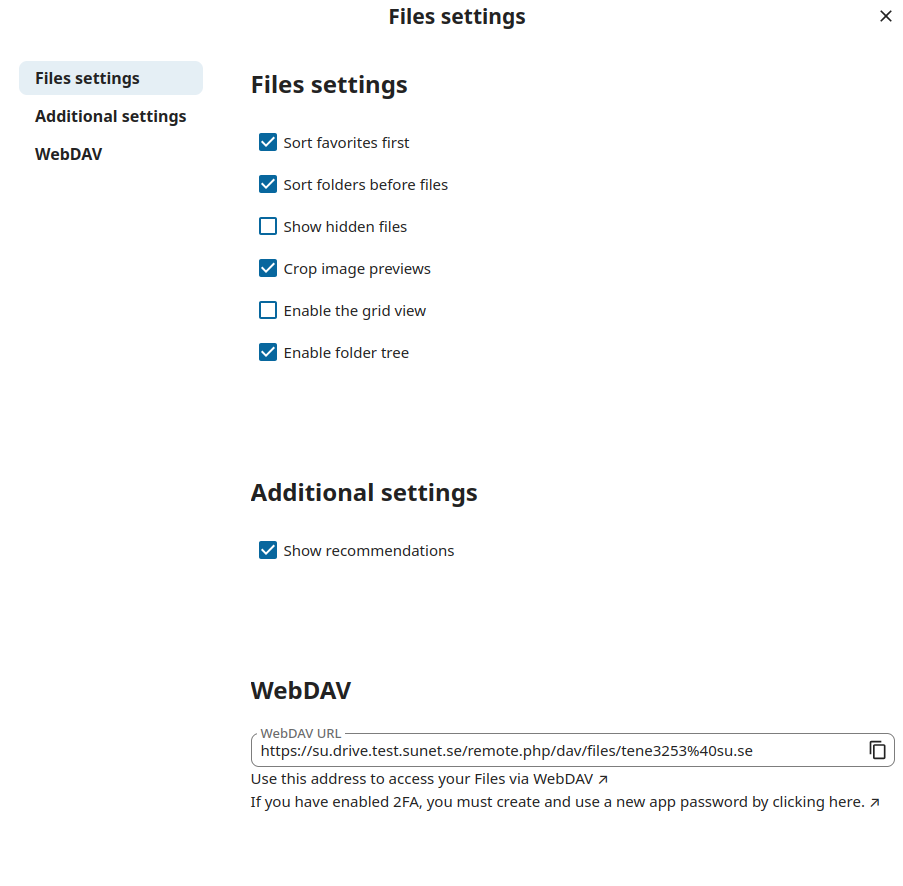
- Click on Files settings (at the bottom left) and copy the WebDAV address (e.g., into a text file or a password container)
- Click on user symbol (the one in the upper right corner) -> Security -> Devices & sessions
- Add an App name and click on “Create new app password”
- Leave the username/password information open until done (or copy username/password into your password container if you want to retain it)
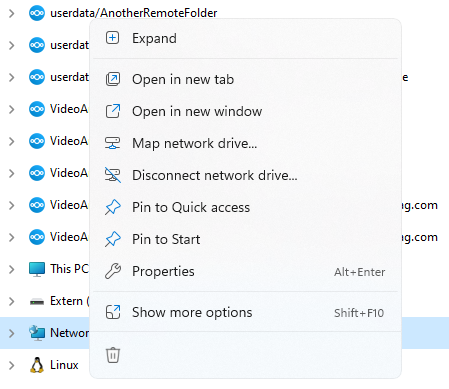
- Open a Windows Explorer and right click on network, select “Map network drive…”
- Select a network drive letter and use the URL from step 2 as Folder name, check the option “Connect using different credentials”\ To connect every time you sign in to your PC, select Reconnect at sign-in.
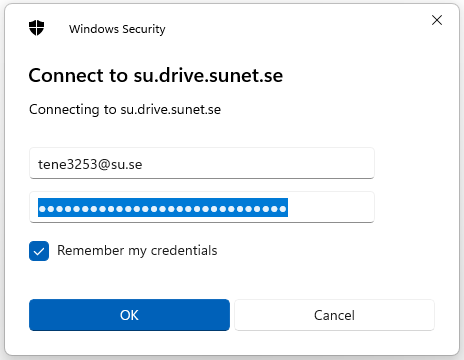
- Paste the username and password from step 5 into the corresponding fields
- Check Remember my credentials if you did not save the password in a password container and do not want to retype the password after sign in
- Click OK to finish mapping the network drive
Notes:
- WebDAV requires you to be always online to work with your files
- Windows has a file size limit for WebDAV, which can be increased to 4GB using the registry. Do this at your own risk.
Files settings dialogue with the WebDAV URL
Application password

Map network drive on Windows 11
Windows security dialogue with username and application password
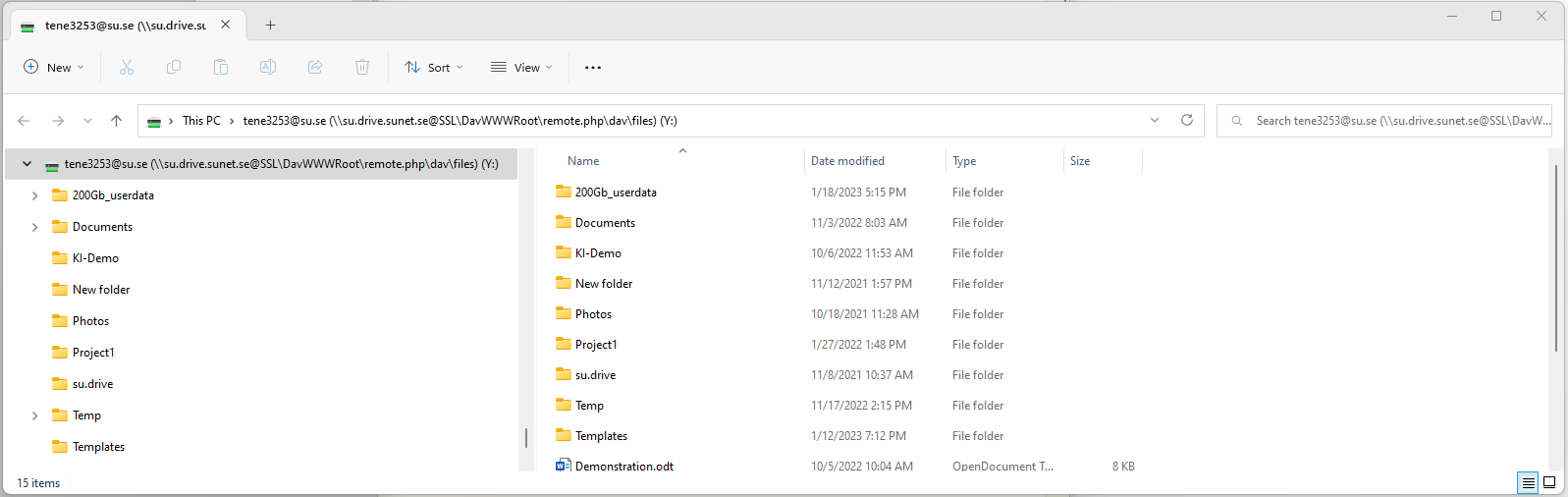
Windows Explorer with a Sunet Drive connected via WebDAV