Add a WebAuthn MFA device on your mobile device
This guide describes how to add a WebAuthn device, such as a Yubikey, Face ID, or Windows Hello, to your user account using a mobile device using iOS or Android.
- Open your web browser and log on to Sunet Drive with your user account
- Go to (User account symbol) → Settings → Security
- Click on “Add security key”
- Follow the instructions on screen to add the WebAuthn device of your choice
- Name your device for easy identification
Note: You must use a mobile web browser (Firefox, Chrome, Edge) your device. The Nextcloud mobile app does not support adding a second factor. Depending on your mobile device, operating system, and WebAuthn device, the described steps might vary slightly.
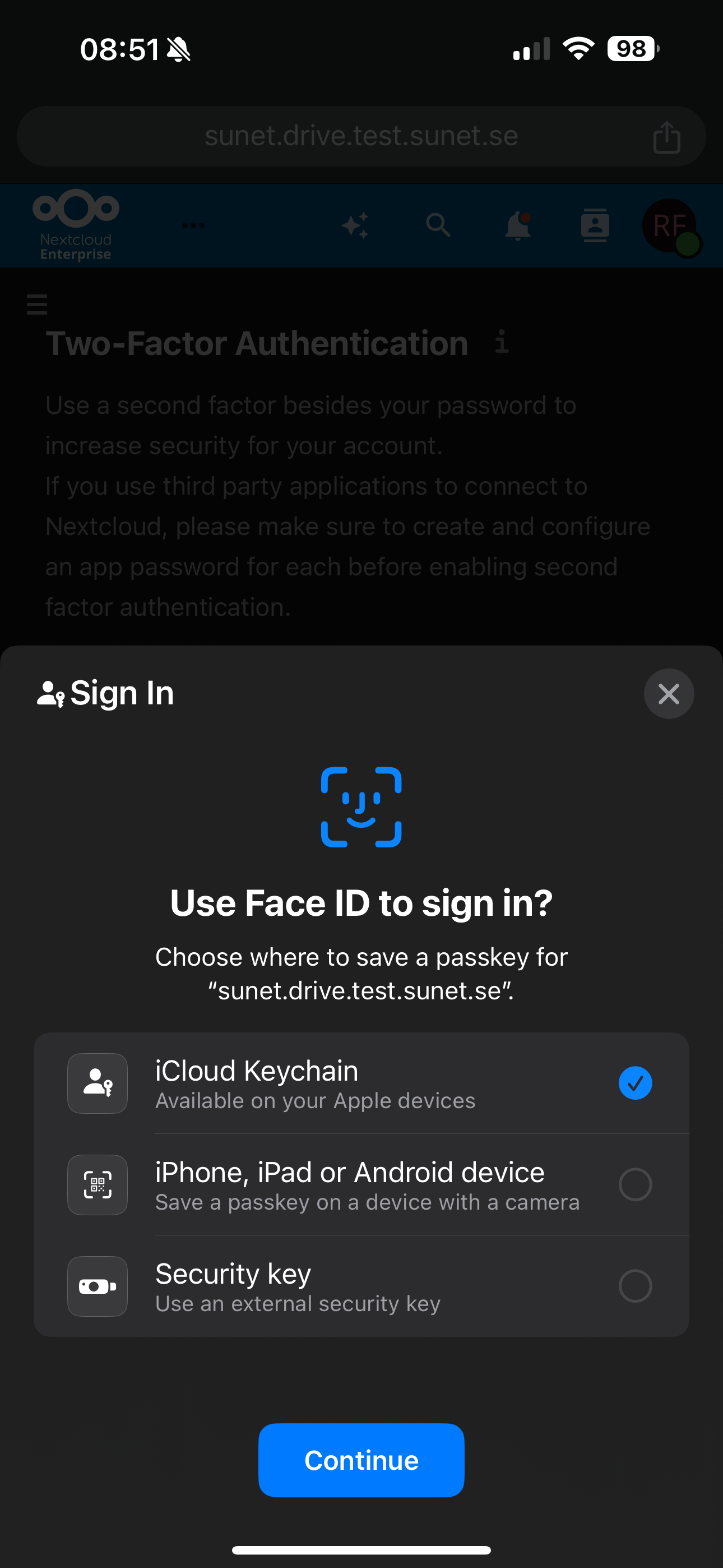
Example adding default Face ID on an iPhone
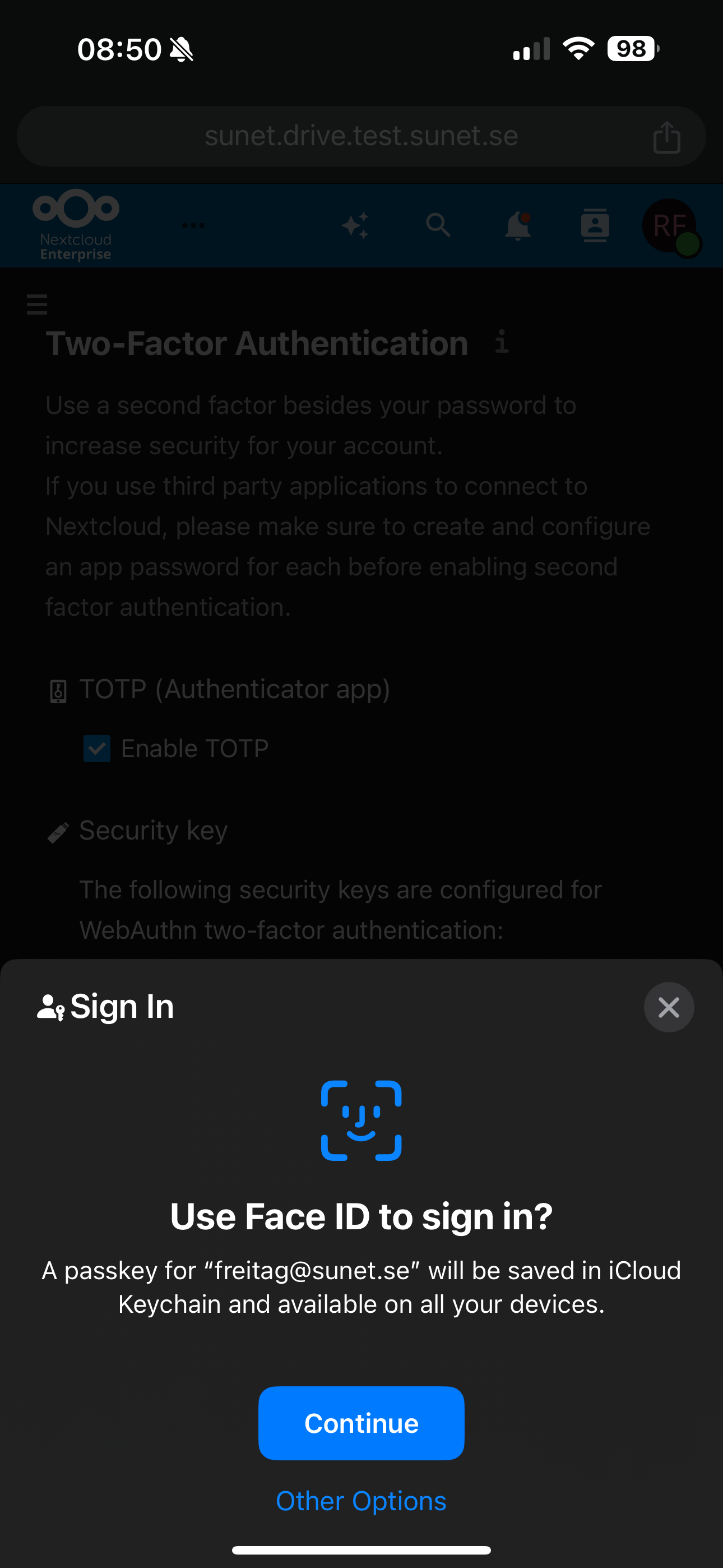
Example adding other WebAuthn devices on an iPhone