Managing storage for projects
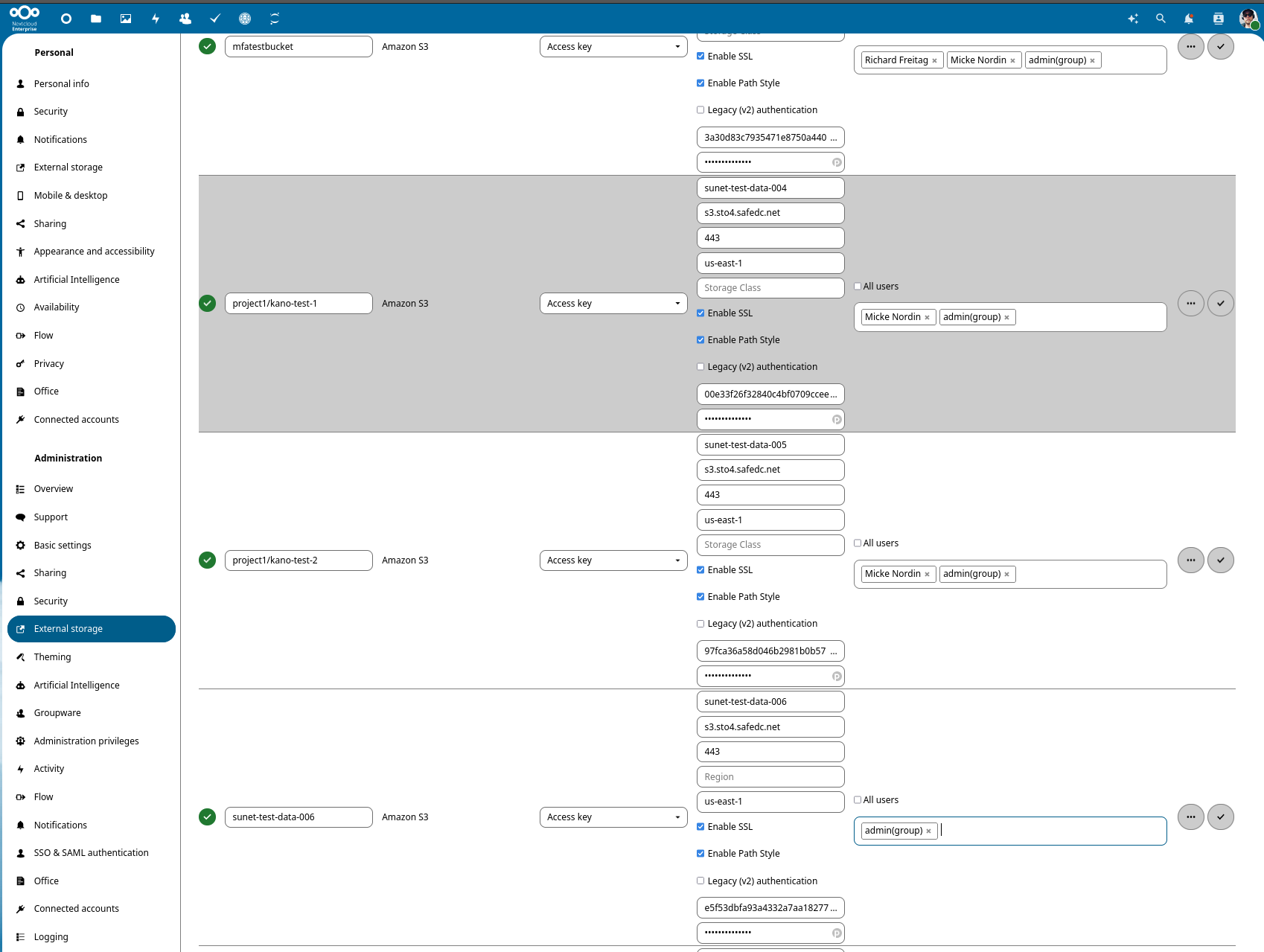
Appointed administrators from each institution have the ability to assign storage areas (S3 buckets) for projects. These areas are preprovisioned by Sunet staff, and can then be allocated by institution administrators as per the requirements of the institution. The areas are visible under the tab “External storage“ in the “Administration settings” in Sunet Drive. S3 buckets are typically allocated in batches of 10 or so. If you are running out of allocated storage areas, you can request a new batch by sending an email to drive@sunet.se (only administrators can order more S3 buckets).
When the S3 buckets are provisioned they will be called:
The administrators workflow for assigning project storage, works like this:
- If desired, you can change the name of the bucket in the leftmost field to something appropriate. Lets assume you want to assign storage to a project called “Project A“, then you can simply rename the bucket to “Project A“.
- In the rightmost field, you add users, and you can optionally remove the “admin(group)“.
- For your changes to take affect, you need to click the check mark icon on the right.
We have guidelines for how many files and how much data in total should be stored in each bucket: File numbers and file sizes in Sunet Drive.
If a project needs to store more files than fits in an individual bucket, you can assign more than one bucket using the same procedure as above. If you want these buckets to be collected in a single file structure, it is possible, with some caveats. The procedure to do this, is the same as above, However, when you name the bucket in the first step, you must include the name of the top directory where the buckets should be collected. Lets say you want a file structure that looks like this:
Where each sub directory is a separate bucket, you should repeat the assignment procedure five times for each of the directories. In this example you would use the names:
- “Project A/Raw Data 1”
- “Project A/Raw Data 2”
- “Project A/Raw Data 3”
- “Project A/Processed Data”
- “Project A/Work Directory”
NOTE: The users you assign these buckets to will not see them until they have themselves have create the directory “Project A“ in the root of their file tree. If they already have a directory called “Project A“ the buckets will show up there when you share the buckets with them, which might cause confusion, so a clear communication with the project members of “Project A“ is key, before embarking on this endeavor.
Before start doing administrative tasks in Sunet Drive, please read: Admin Walkthrough: Including Dos and Don'ts
Upstream documentation from Nextcloud is available here: https://docs.nextcloud.com/server/latest/admin_manual/configuration_files/external_storage_configuration_gui.html