rclone config to use with Sunet Drive
Use case: You want to access data in your Sunet Drive using rclone.
Here are the instructions to configure your Nextcloud-folder as webdav in rclone. The instructions are based on Linux, but should be similar on Windows and Mac.
Tutorial Video: Sunet Drive - Configure Rclone
Note: rclone is a command line tool and some familiarity with the command line and rclone is recommended when using it.
- Install the latest version of rclone: https://rclone.org/install/
- Create an application password for your Nextcloud user
- On the command line: rclone config
- n for New remote
- Enter name for new remote, e.g., sunet-drive
- Select the number for WebDAV. Rclone has a lot of options, and the numbers change occasionally
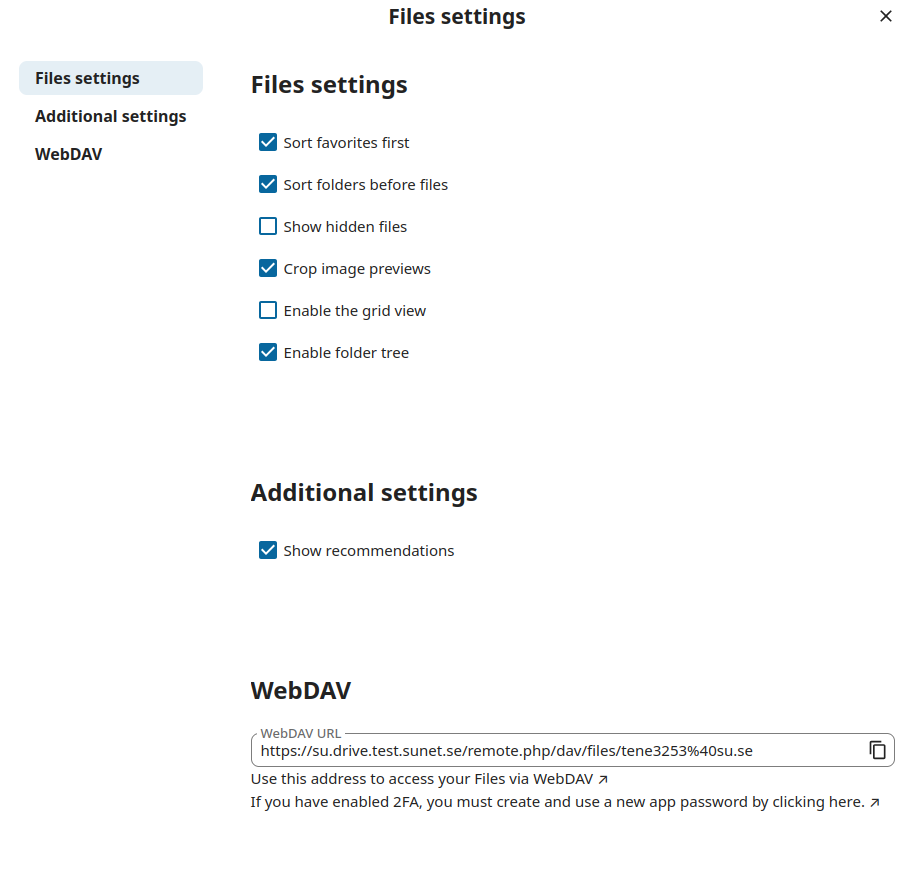
- Enter the WebDAV URL for your user, e.g., https://su.drive.test.sunet.se/remote.php/dav/files/tene3253%40su.se
- Select the number for Nextcloud as WebDAV provider
- Enter your username, e.g., tene3253@su.se
- y for ‘Yes, type in my own password’
- Paste and confirm the application password
- No bearer_token and no advanced options
- y for ‘Yes, this is OK’ to confirm the configuration
- q to quit configuration
- Quit config
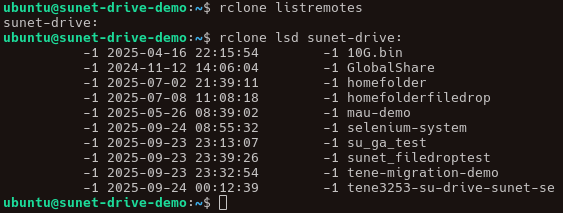
- On the command line, confirm that your configuration works:
- rclone listremotes
- rclone lsd sunet-drive:
If the last command shows the folders from your Sunet Drive, you have configured rclone correctly.
WebDAV URL in the Files settings of the files app