Application password and the Nextcloud sync-client
With Nextcloud/Sunet Drive, you can create application passwords for individual applications. Here are the steps to use an application password for the sync-client.
- Log into your Sunet Drive via your browser using your normal identity (i.e., directly via https://drive.sunet.se)
- Remember the node URL, this is important later (e.g., https://su.drive.sunet.se for users from Stockholm University)
- Click on your profile icon and then Settings
- Open Security on the left panel
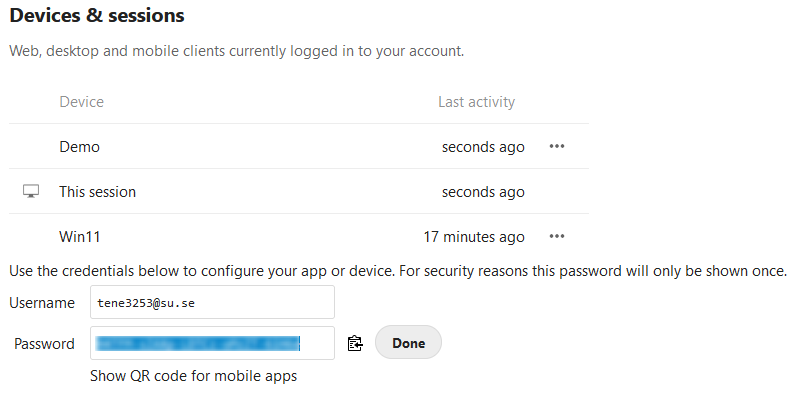
- Type in an app name and click on “Create new app password”
- Copy/Save the username and password
- Open your sync-client from the tray bar and click on your name
- Click on “Add account”
- Klick on “Log in”
- User URL from step 2 (e.g. https://su.drive.sunet.se) and click next
- Select “Alternative log in using app token”
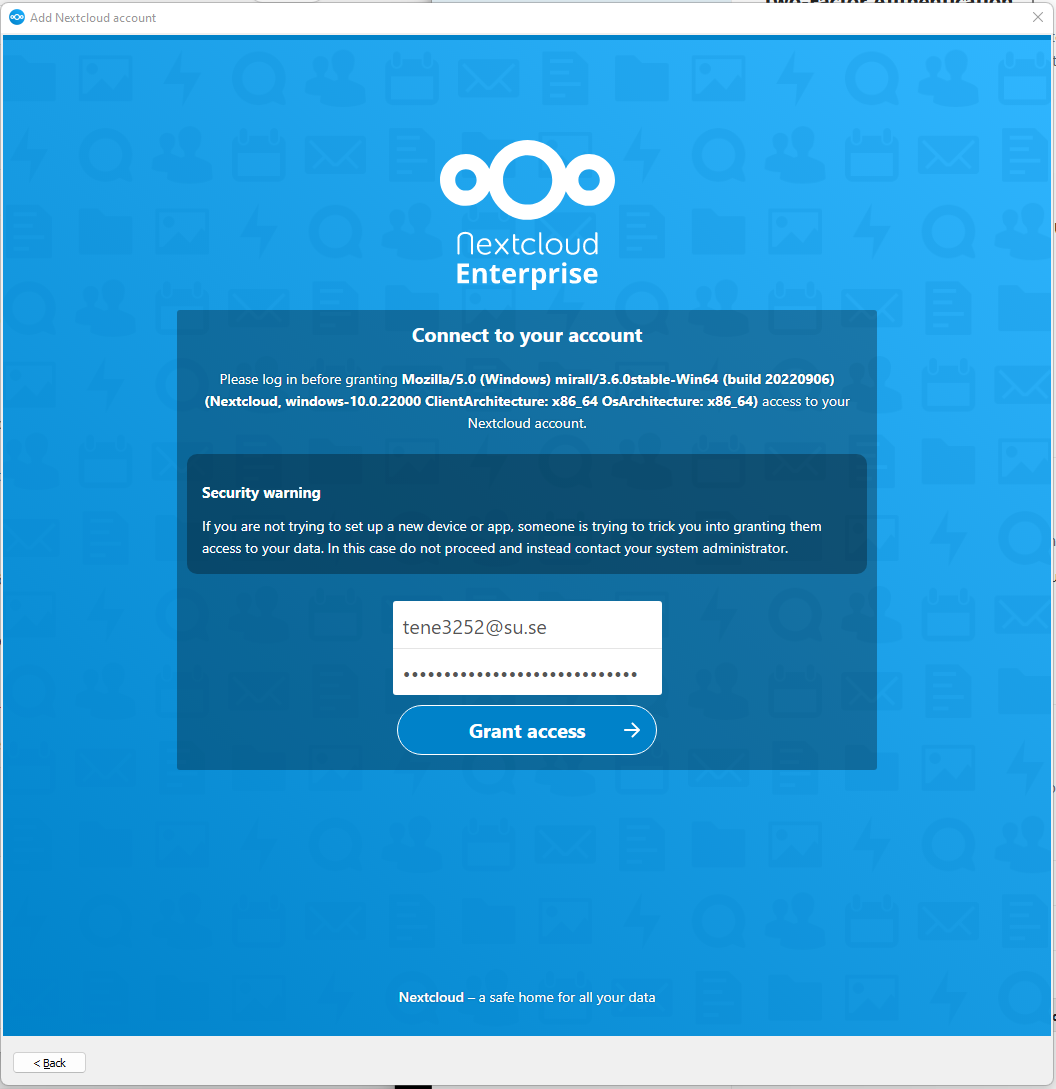
- Paste the username/password from Step 6 and click on “Grant access”
From there you can then select which folders you want to synchronize.
Devices and Sessions dialogue after adding a new app
Sync-client with the pasted credentials