Split large files on Windows using 7-Zip
If you work with files that are larger than either the WebDAV limit or the file size limit of Sunet Drive, you might want to split your files into smaller pieces. There is no standard-way of splitting files that is built into Windows, which means an external tool has to be used. One tool that is both free and useful is 7-Zip.
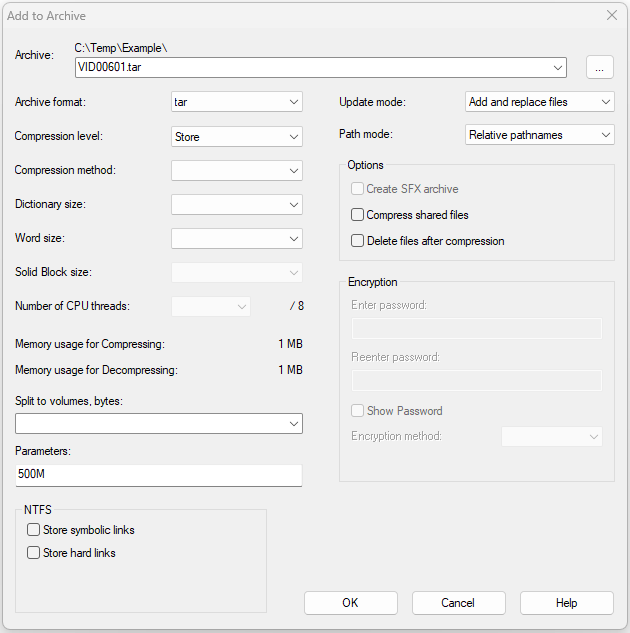
- Right-click on a file or folder and select “7-zip->Add to archive…”
- Chose your archive format and compression level. If you only want to store files, select compression level “Store”
- Set the volume size in Split to volumes, byte, e.g., 500M for individual files of 500MB
- Click OK
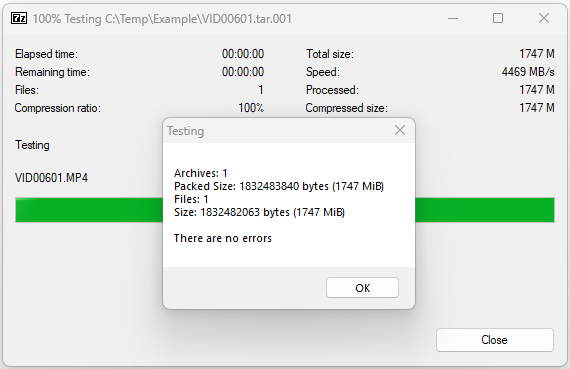
You will get a number of files with the ending .zip.001-.zipXXX, with XXX being the number of files required to store your data. To make sure that your file is valid you can test the archive with a right-click on the .zip.001-file and selecting “7-zip->Test archive”.
Notes
- tar, which stands for ‘tape archive’, is a store-only file format that is compatible with most Unix-like operating systems (i.e. Linux/Mac)
- 7-Zip is one of many methods to split/join large files. Other programs, such as WinZip or WinRAR usually have the similar options.
Add to archive with options
Output of “Test archive” for a valid file