Multi-factor Authentication - MFA, Step-up Authentication and ForceMFA
Sunet Drive has support for added security by adding other factors (MFA) to the login process, which include:
- WebAuthn - Web Authentication devices, such as Yubikeys, Face ID or Windows Hello
- TOTP - Time-based one-time password via standard authenticator applications
- Backup Codes - Generated by the user
- Admin code - Single-use, provided by an administrator
Note: It is possible to add multiple WebAuthn devices and we strongly advise you to add at least two added factors in addition to the backup codes, which you store in a secure location.
Step-up Authentication
Step-up Authentication is used if your Single Sign-On provider, i.e., your university’s Identity Provider (IdP) does not support or does not signal MFA to Sunet Drive. In that case, Sunet Drive asks you for your added factor after you logged on through your IdP.
ForceMFA
Your university or institution can enforce MFA for certain users or groups, in which case you will be asked to add a second factor after logging on to Sunet Drive. Please check with your local administration or data office if you have any questions.
MFA Zones
An MFA Zone is a protected folder that can be locked by individual users. An MFA Zone:
- can only be accessed through the web interface of Sunet Drive.
- is limited to a single node of Sunet Drive.
- can only be accessed by accounts that have added MFA to their account.
A guide to use and administrate MFA Zones can be found here.
Add MFA to your user account
To add a second factor to your account, log on to Sunet Drive through a browser and go to (User account symbol) → Settings → Security. Descriptions on how to add/configure each type of added factor can be found in separate guides:
- Add a WebAuthn MFA device on your desktop computer
- Add a WebAuthn MFA device on your mobile device
- Add TOTP as MFA using an authenticator app
- MFA Backup Codes
- MFA Admin Code
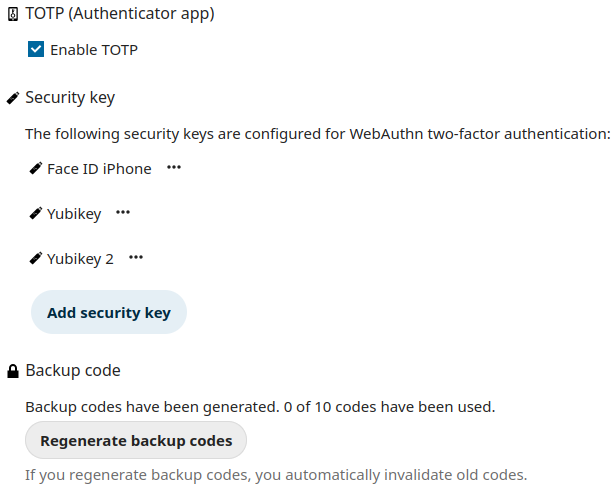
Example security settings of a user account with multiple added factors