rclone sync or copy with Sunet Drive
Use case: You want to synchronize or copy a folder to/from Sunet Drive and want to have control over the transfer parameters
- Install the latest version of rclone (1.65 at the time of writing): https://rclone.org/install/
- Create an application password for your Nextcloud user
- Configure Nextcloud-folder as webdav in rclone (in my case named sunet-nextcloud)
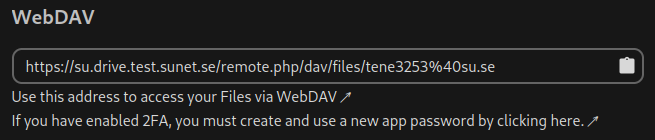
- The webdav link can be copied from the files settings in the files app\ (e.g.: https://su.drive.test.sunet.se/remote.php/dav/files/tene3253%40su.se)
Note: Using rclone can and will delete files locally and remotely if you use it incorrectly. Test your commands on test data in Sunet Drive Test before running them in production.
Familiarize yourself with rclone and its options before using it. Relevant for this documentation are:
Run the following command to synchronize a remote folder to your local folder. This starts the synchronization process and shows you the progress during the transfer.
rclone sync sunet-nextcloud:<remote-folder> <local-folder> --transfers 32 --checkers 16 -P
The following command will copy files and folders from a local folder to Sunet Drive, and make sure that empty folders are created on the remote location
rclone copy <local-folder> sunet-nextcloud:<remote-folder> --create-empty-src-dirs --transfers 32 --checkers 16 -P
Tips and Tricks:
- Again, use rclone with Sunet Drive Test if you are unsure or want to try out things
- In a script you want to omit the parameter -P which shows you the progress during the transfer
- 32 transfers provide the optimal performance when handling many small files
- The number of transfers and checkers might depend on the type of research data you have. Large files might need less transfers and checkers. Try on a test dataset by doubling or halving the numbers
Getting the webdav link from the file settings in the files app