Sync-client logon
Note: Starting from December 3rd, all sync-clients have to log on using the name of your node. Previously, this was only the case for Mac OS users.
Here are the recommended steps:
- Log on to Sunet Drive using your default browser
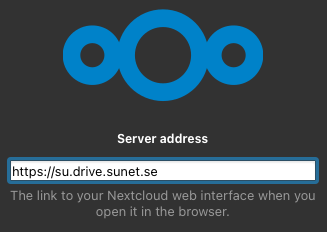
- Copy the main URL with the node-name after the log on (e.g., https://su.drive.sunet.se)
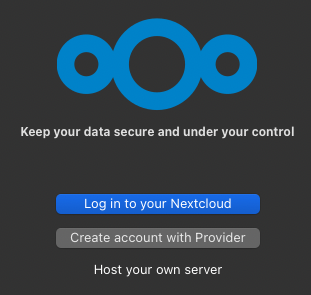
- Open the sync client and click on “Log in to your Nextcloud”
- Paste or type the URL from step 3
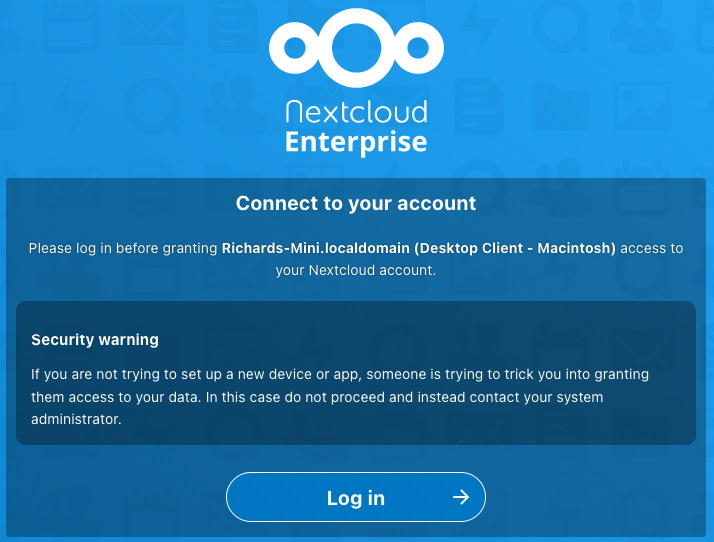
- The browser opens and gives you the option to connect your account, click on “Log in”
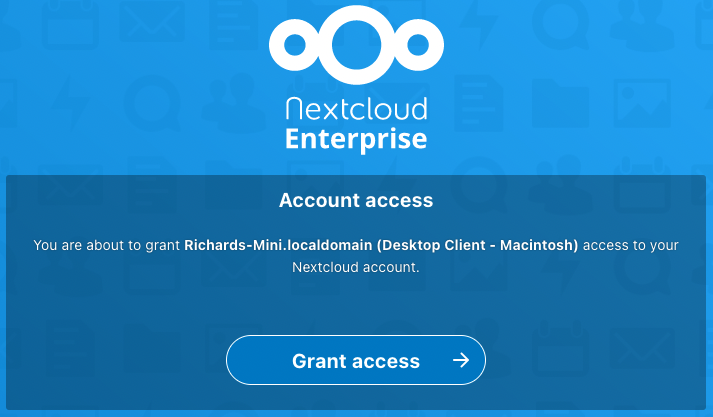
- Click on “Grant access”
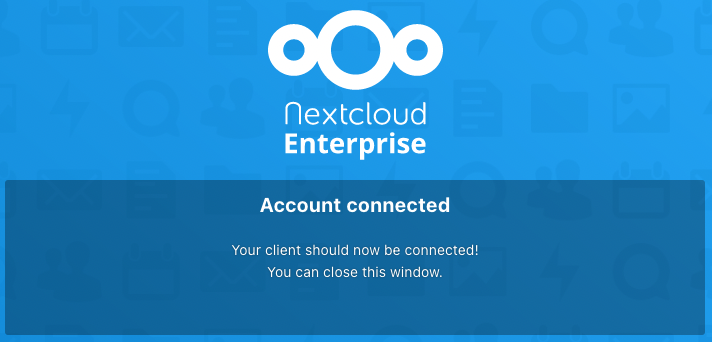
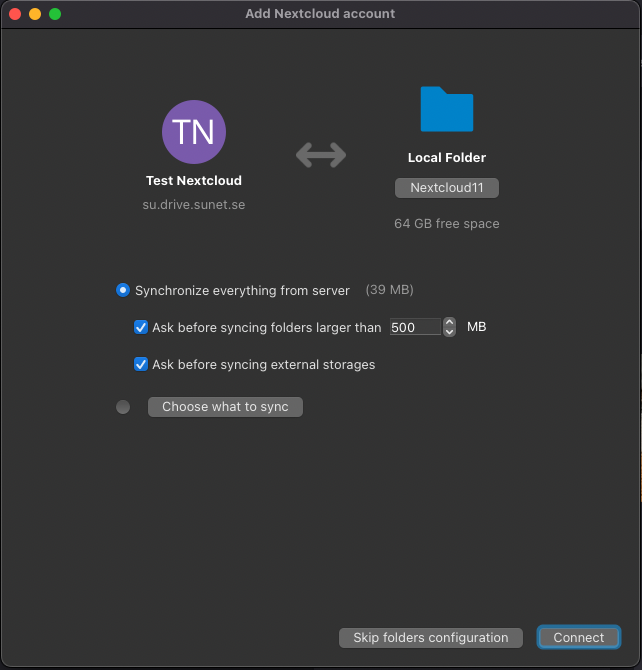
- You will receive a confirmation “Account connected” and the sync-client shows you the sync-options
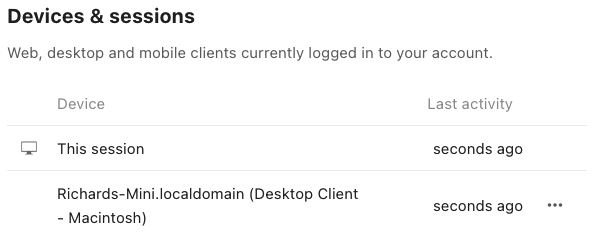
Once your client is connected, it will directly start synchronizing the files from your Sunet Drive account. Your device will then also show up in the web interface. If you log on to Sunet Drive via your browser, you can click on your user icon on the top right, and then go into Settings. On the left you have the Security menu and the list of “Devices and Sessions” at the bottom. Your sync client will be listed with the same name as shown in steps 5 and 6 of the instructions.
Select “Log in to your Nextcloud”
Type or paste the URL containing the node where your account is located
Click “Log in” using the browser window that just opened
Click on “Grant access”
Account connected
Synchronization options
Devices and Sessions from the security settings of your account