Desktop client: Add and remove user accounts
Sunet Drive uses Nextcloud, which is designed to support multiple accounts at the same time. Here we show you how you can add another account to synchronize locally. The example is based on the Windows client, but the procedure is equivalent on a Mac or Linux computer.
Adding user accounts to the desktop client
- Click on the Nextcloud tray icon in your task bar
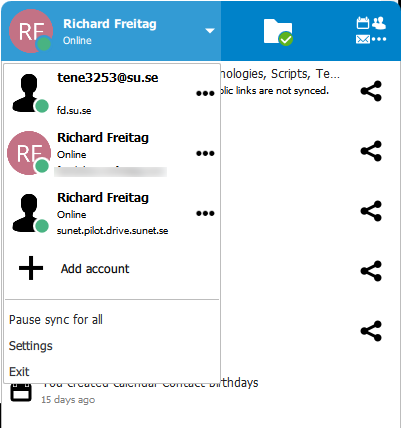
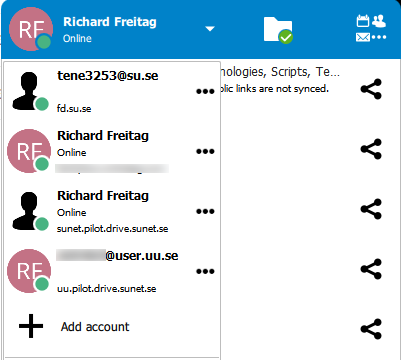
- Click on your username to list all accounts and then “Add account”
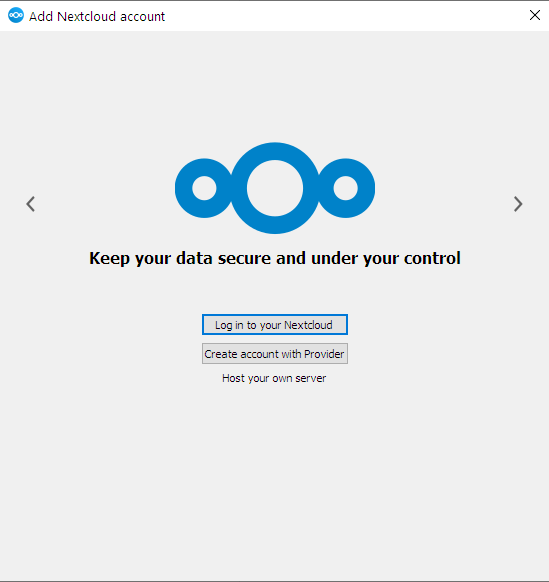
- Select “Log in to your Nextcloud”
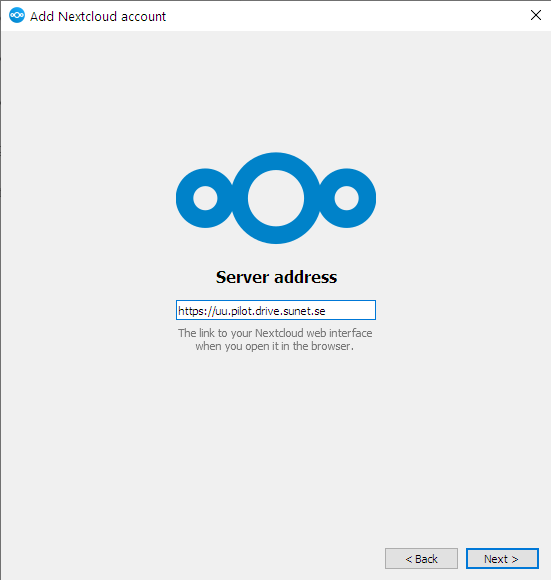
- Type in the server address
- Click on “Log in” to be forwarded to the login page
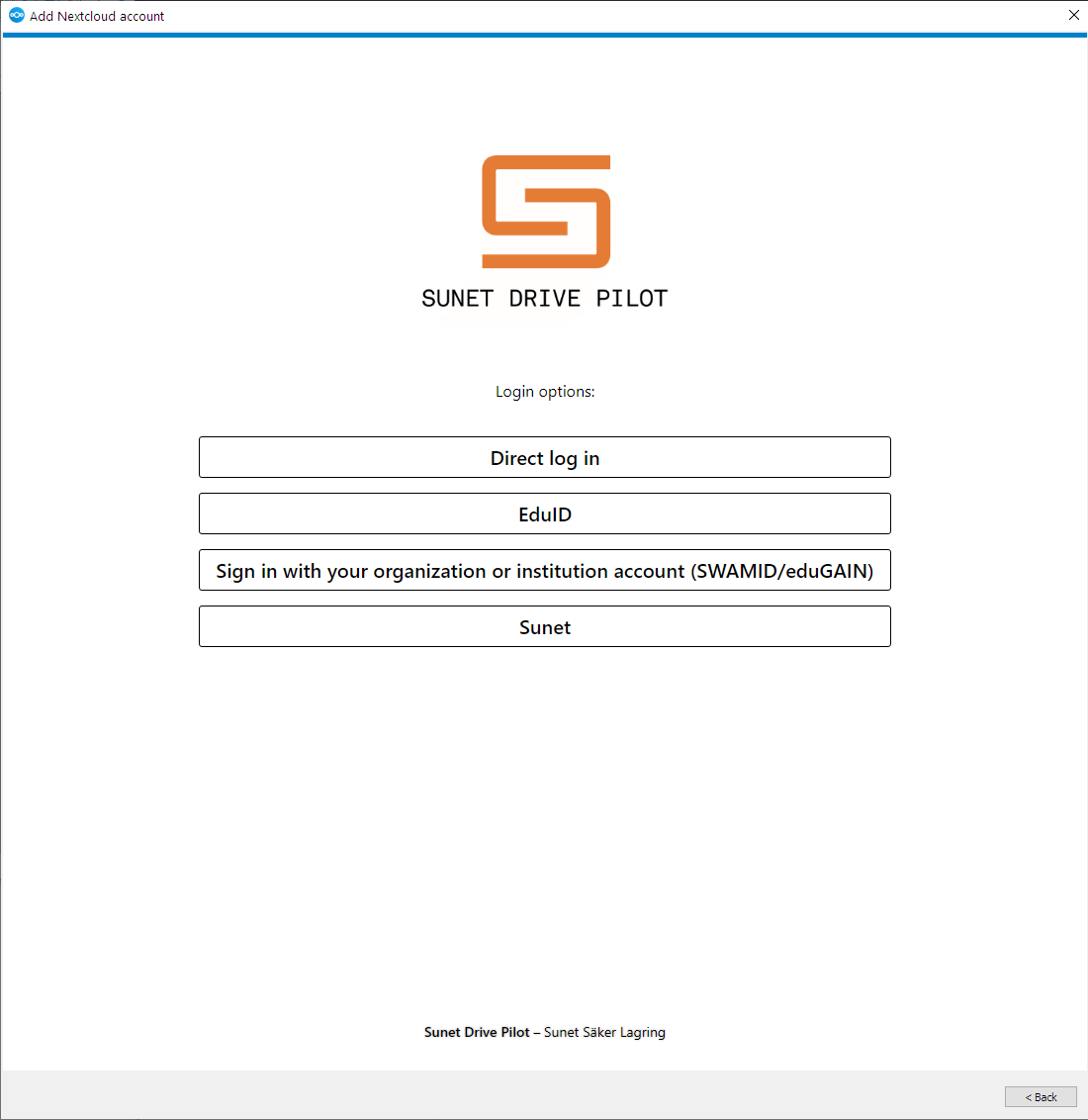
- Log in using your respective institution
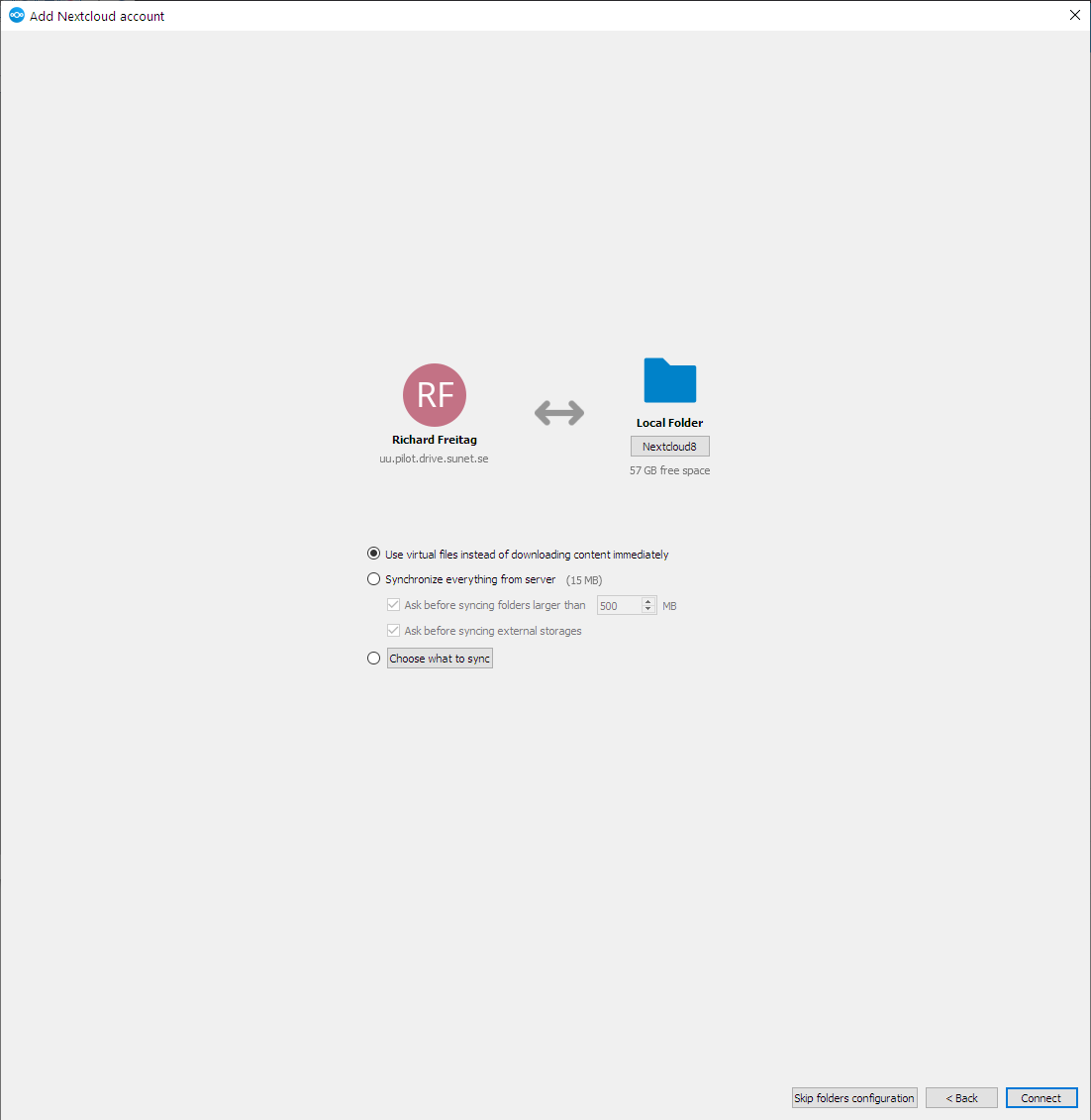
- Select the location and options that should apply for the sync connection
- The new connection starts synchronizing and will show up in the list of accounts
Removing user accounts from the desktop client
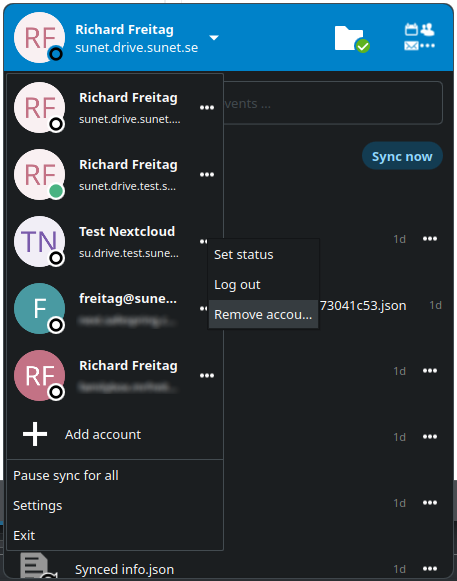
- Click on the Nextcloud tray icon in your task bar
- Click on the three dots (…) next to the account you want to remove
- Select “Remove account”
- Confirm the account removal
Note: This will only remove the connection, but not the locally synchronized files.
Open the synchronization client from your task bar and click on your username to list all accounts and then “Add account”
Select “Log in to your Nextcloud”
Type in the server address
Click on “Log in” to be forwarded to the login page
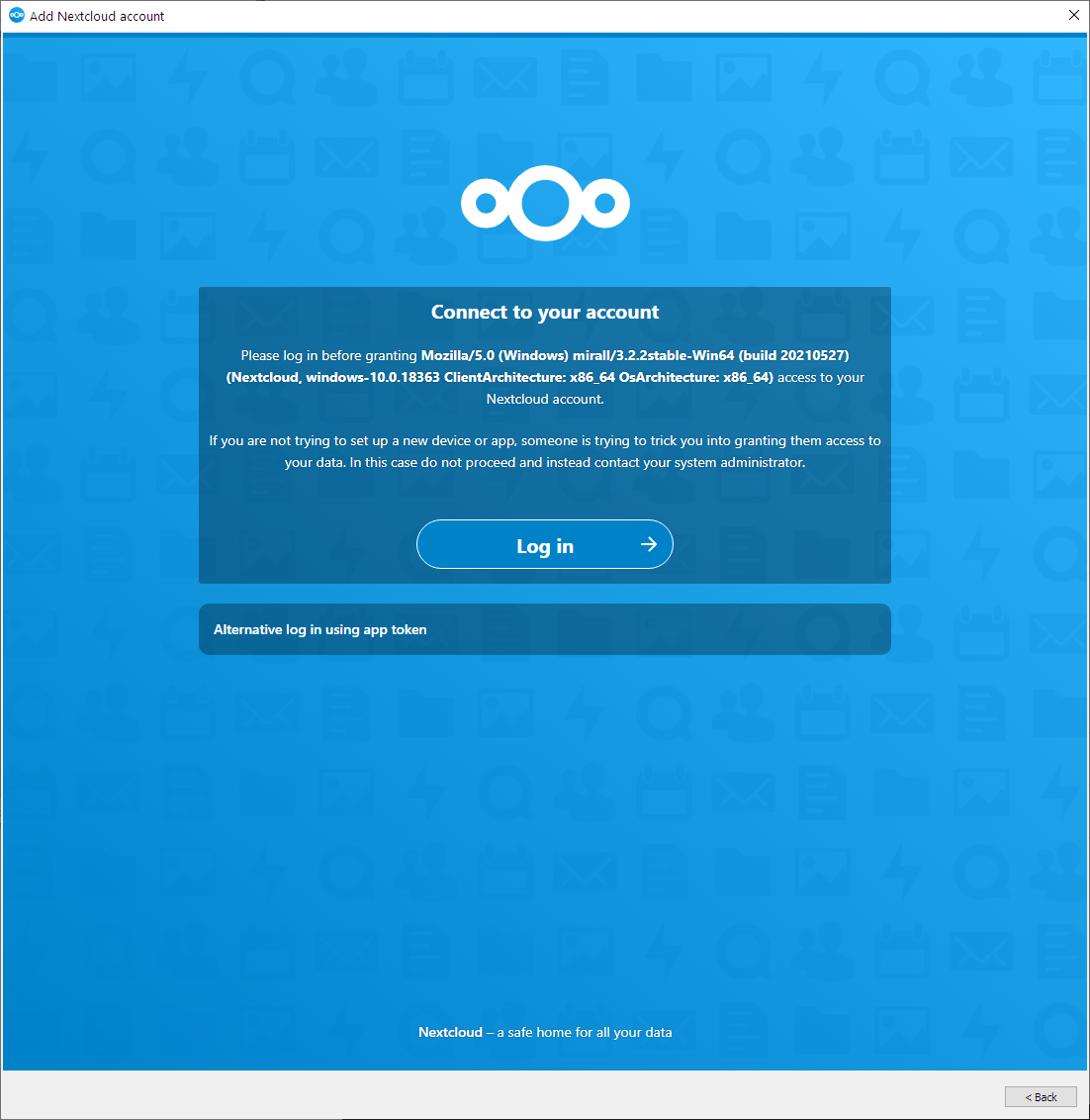
Log in using your respective institution
Select the location and options that should apply for the sync connection
The new connection starts synchronizing and will show up in the list of accounts
Removing user accounts from the desktop client