Add a WebAuthn MFA device on your desktop computer
This guide describes how to add a WebAuthn device, such as a Yubikey, Face ID, or Windows Hello, to your user account using a desktop computer.
- Open your web browser and log on to Sunet Drive with your user account
- Go to (User account symbol) → Settings → Security
- Click on “Add security key”
- Follow the instructions on screen to add the WebAuthn device of your choice
- Name your device for easy identification
Note: Depending on your chosen WebAuthn devices and chosen operating system (Linux, MacOS, Windows), the steps to add a WebAuthn device might slightly vary.
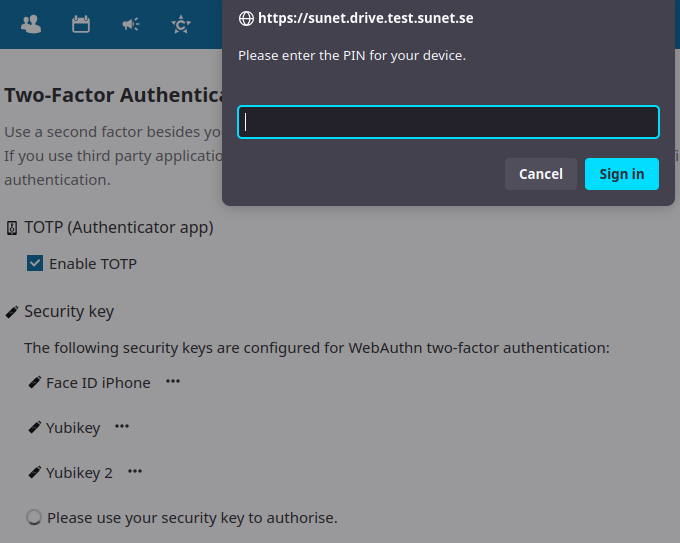
Example of a Yubikey asking for its PIN to add the device as added security factor
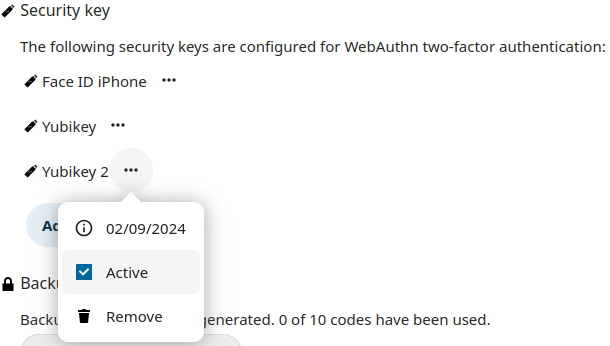
Detailed information about an added WebAuthn device, with option to deactivate or remove the device