WebDAV on Mac
With WebDAV you can directly connect to Sunet Drive through the Windows Explorer or other WebDAV compatible programs. The following instruction applies to Windows 11, but is similar to other versions of Windows. The generic instruction on how to map a network drive can be found at support.microsoft.com.
- Log on to Sunet Drive using your default browser
- Open the files app
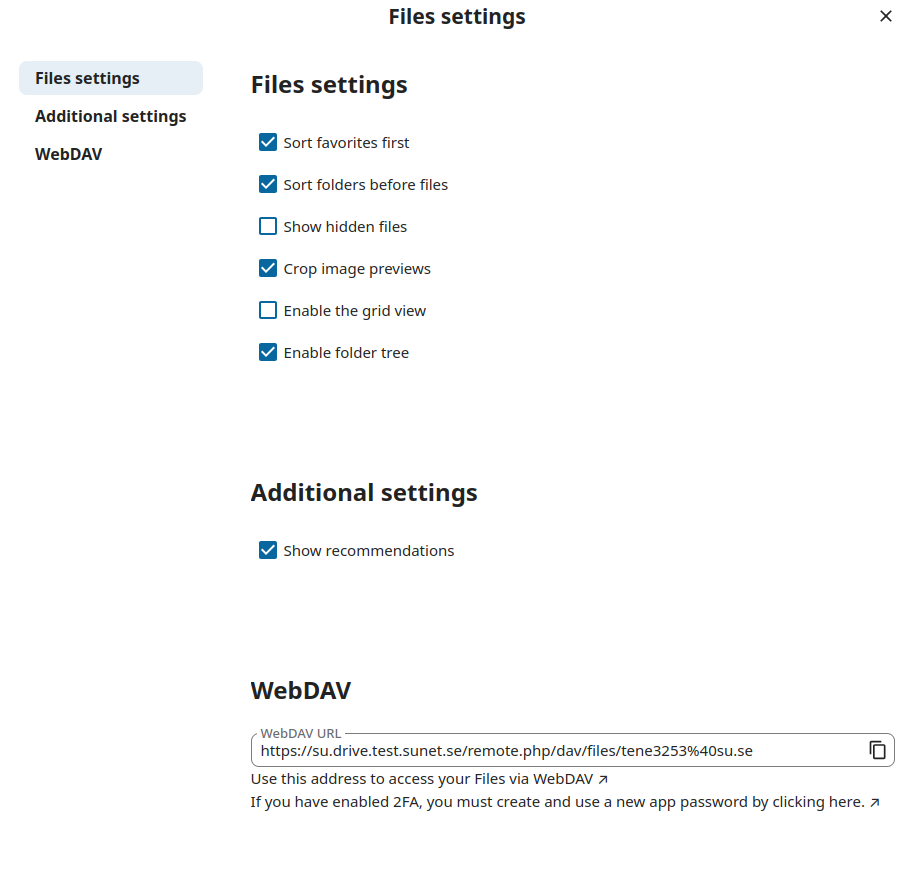
- Click on Files settings (at the bottom left) and copy the WebDAV address (e.g., into a text file or a password container)
- Click on user symbol (the one in the upper right corner) -> Security -> Devices & sessions
- Add an App name and click on “Create new app password”
- Leave the username/password information open until done (or copy username/password into your password container if you want to retain it)
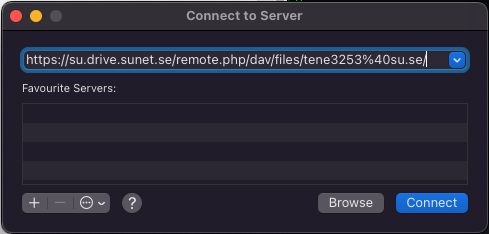
- In the Finder on your Mac, choose Go > Connect to Server
- Copy the URL from step 2 into the address list and click “Connect”, and “Connect” to continue on the next dialogue
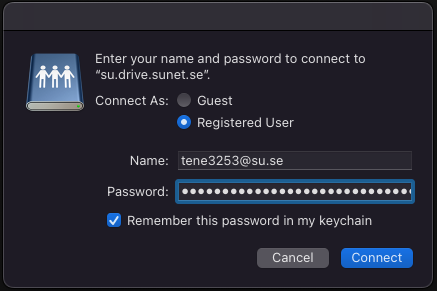
- Paste the username and password from step 5 into the corresponding fields, select “Remember this password in my keychain” if you want to log on automatically later
- Click “Connect” to finish
The Finder opens with the active connection, and the connection to Sunet Drive will show up under the “Locations” on the left side.
Notes:
- WebDAV requires you to be always online to work with your files
- WebDAV has a maximum file size of 4GB. If you want to work with larger files you will have to use the official sync client
Settings dialogue with the WebDAV URL
Application password

Connect to Server in Finder
Enter your username and generated application password