Synchronize any local folder with Sunet Drive
With the Nextcloud synchronization client you can synchronize any local folder with any remote folder. This is especially helpful when you either have lab equipment that requires you to save data in a specific folder, or if you want to migrate files from another cloud service to Sunet Drive. The description and tips you find here are based on the Nextcloud documentation, and the latest documentation can be found here: Nextcloud client documentation
The general process to add an arbitrary folder connection is:
- Open the Nextcloud sync client and go into the Settings (right click on tray icon, or selecting your user account in the main menu)
- Click on “Add Folder Sync Connection”
- Select local folder
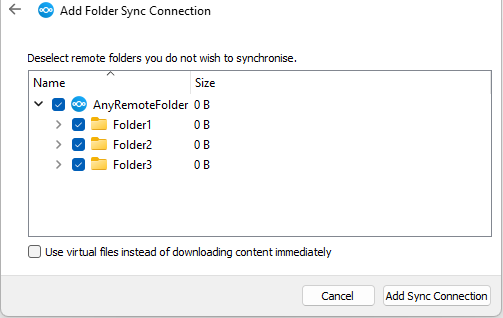
- Select remote folder
This process is straightforward, but you should take care of a few things, especially when synchronizing many folders:
- Select a remote folder where you have enough storage available, ideally a subfolder in a project bucket or in your user bucket (usually called “userdata”.
- Carefully choose whether to use virtual files or not when synchronizing your files. Using virtual files downloads them when you access the files, which can cause issues in older external software that might access the files and expects them to be immediately available.
- Download files locally first when migrating files from another cloud service, and disable virtual files for Nextcloud.
As always, test with a small number of files and folders first. And if you are unsure contact your local IT department or data office who can help with setting up a good structure for your project.
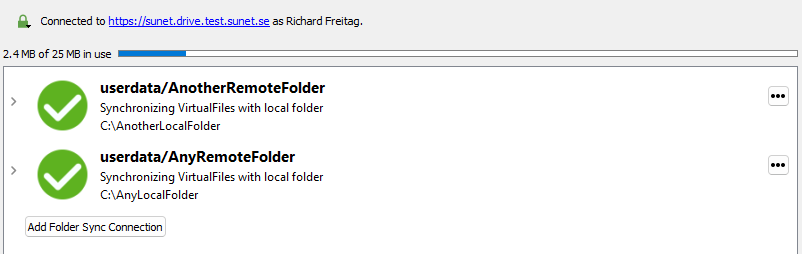
Multiple local folders connected with multiple remote folders in Nextcloud
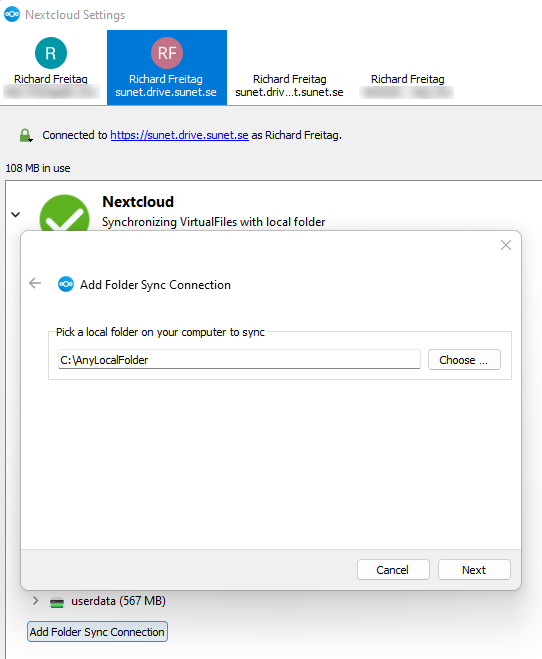
Add a folder sync connection and select local folder
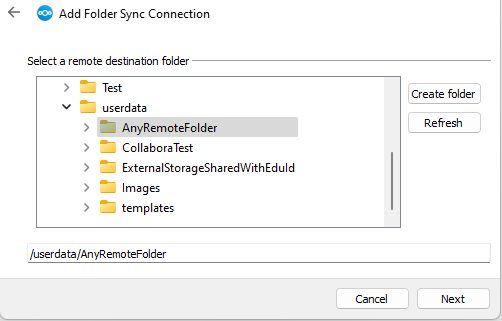
Select any remote folder to synchronize with
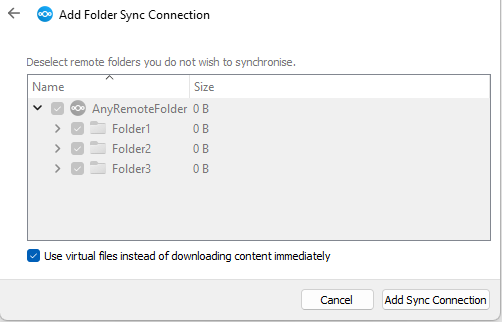
Without virtual files you can choose which folders to synchronize
With virtual files you synchronize everything and files are downloaded when you access them