Migrating personal files/folder from Box or another cloud service
Update October 2025: Operating systems (mainly Mac OS and Windows) are transitioning from traditional local files and folders to “locations” using virtual files, requiring a continuous online presence. With these changes in place, it is recommended to manually copy/move any files that need to be migrated.
Note: If you have large amounts of data, e.g. for a larger research group, refer to Migrating shared/group folders from Box to Sunet Drive with the help of rclone and/or speak to your IT department or data office.
With Sunet Drive, you can synchronize and migrate data from another cloud service. The guide to synchronizing any local folder with Sunet Drive explains the underlying setup. The following example moves a folder from Box to Sunet Drive and assumes that both synchronization clients are installed on your computer.
- Take a backup of all of the data you have in Box and Sunet Drive
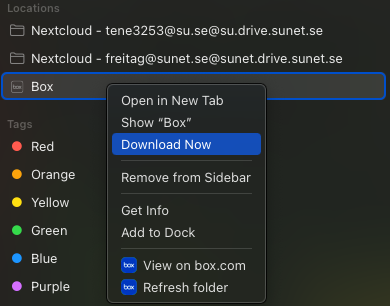
- Download the folder you want to migrate from Box to Sunet Drive
- Drag/Move/Copy/Paste the desired folder from the Box location to your Sunet Drive location
Here is some additional information and some tips:
- You will need to share data from Sunet Drive in case you have set up shares in Box
- File versions will remain in Box and are NOT migrated
- Make sure you have enough space available locally to download the data
- If you migrate data from one service to another, define a specific date after which you actively archive the data from the old service.
Download Now option for the Box location in finder on a Mac